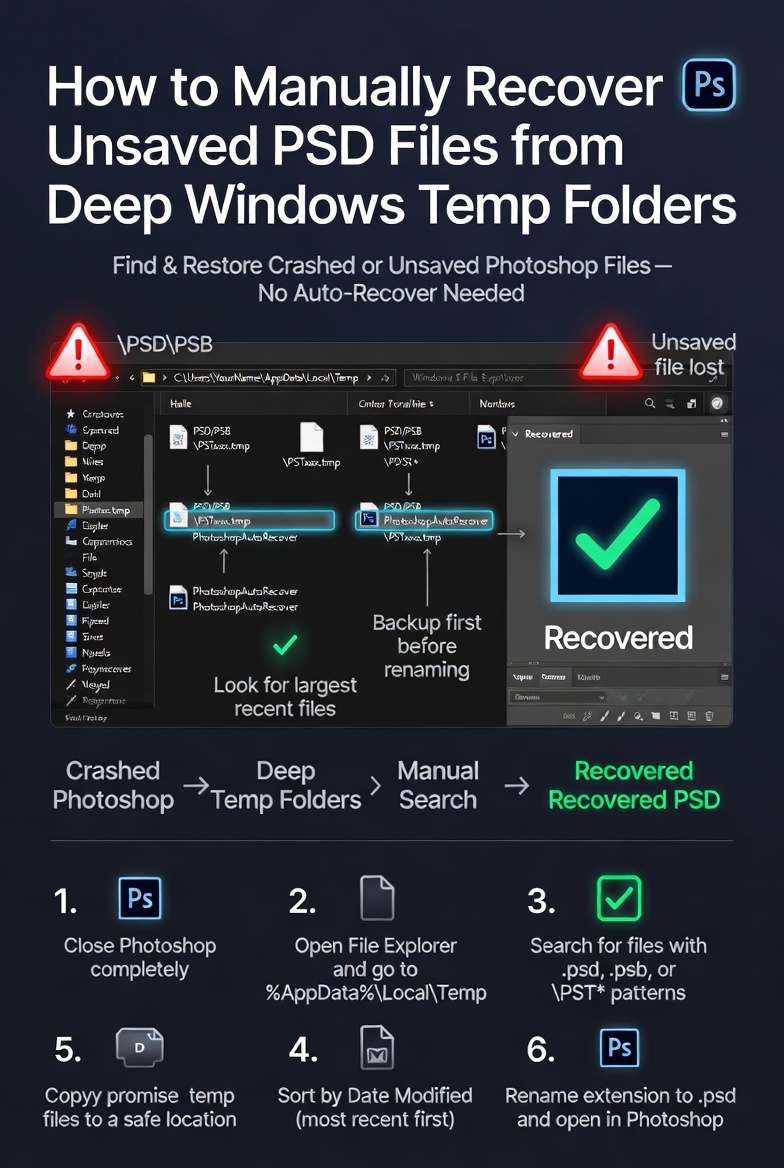
How to Manually Recover Unsaved PSD Files from Deep Windows Temp Folders
Finding out that you have lost an unsaved Photoshop file may be a very unpleasant experience, particularly after spending hours altering something in great detail. There are auto-recovery mechanisms in Photoshop; but, owing to crashes, power outages, or system disruptions, these tools may not always perform as planned. In situations like this, Windows temporary files often include hidden recovery data that may be hand accessed and restored. Even in the event that Photoshop does not suggest recovery upon restart, these deep system folders preserve cached and autosaved files that may still include the PSD material that you have lost. If you are able to traverse these directories and recognize the files that are pertinent to the situation, you will have a better chance of successfully recovering that data. This method requires thorough investigation of system directories, identification of files, and appropriate treatment in order to prevent the overwriting of confidential information. It is possible to considerably improve your chances of recovering unsaved PSD files and restoring your work if you take a methodical approach to the process.
Comprehending the Operation of Photoshop’s Auto-Recovery Function
In order to safeguard against unforeseen interruptions, the auto-recovery function of Photoshop will regularly store temporary copies of documents that are currently open. After a crash, Photoshop is supposed to automatically restore certain recovery files, which are saved in specific places inside the system. certain files are designed to be recovered automatically. There is a possibility that this procedure will not be successful if the computer suddenly shuts down or if the recovery files get corrupted. In these kinds of circumstances, the temporary data could still be there inside the folders of Windows, but it would not be accessible via the typical methods. Having an understanding of how this system works enables you to have a better understanding of where to seek and what kinds of files to hunt for when you are trying to manually recover data.
Finding Temporary Folders in Windows on Your Computer for Recovery
It is possible to access Windows’ temporary files by using system paths or environment variables. Windows saves these files in a number of secret locations. Typical destinations include transient folders that are particular to the user as well as deeper system directories that store application data that has an application cache. As a consequence of the fact that these folders often include a significant number of files, it is required to filter the results depending on the kind of file and the modifications date. When attempting to access these folders, it is absolutely necessary to enable the display of hidden files under the Windows settings. You may begin the process of locating probable recovery files associated with your lost PSD project by traveling to the appropriate places at the appropriate times.
Knowing the Difference Between PSD and Temporary File Formats
Due to the fact that Photoshop often stores temporary data using multiple naming conventions, it is possible that recovery files may not always appear with a conventional PSD extension. It is possible that these files include extensions like TMP or other variants that still contain picture data that may be useable. The process of sorting files according to their size and date might be helpful in narrowing down choices, particularly if you recall the date on which the file was most recently changed. It is possible to recreate the original content of these files by opening them directly in Photoshop or by renaming them with a PSD extension. Recognizing these formats is an essential step in the process of data recovery since it enables you to concentrate on files that are most likely to contain your work.
Renaming and replicating recovery files in a secure manner
From the moment that possible recovery files have been found, it is essential to handle them with caution in order to prevent the loss of data. Before trying to access or rename the files, it is recommended that you first copy them to a different directory. This will ensure that the original data is not corrupted. By renaming files with a PSD extension, you may make them identifiable to Photoshop, which will enable you to proceed with the recovery process. If you want to avoid accidentally corrupting the files, it is best to operate with copies rather than the originals. The use of this careful approach allows for the preservation of the integrity of the temporary data while simultaneously increasing the chance of successful recovery.
Opening Recovered Files with Photoshop when You Have Them
The subsequent stage, which comes after the preparation of the recovery files, is to open them in Photoshop. Depending on the status of the file, it is possible that certain files may open correctly, while others may show errors or just partially contain information. Photoshop may still be able to restore layers or components of the original design even in situations where the file has developed some degree of corruption. In order to prevent any loss of progress, it is important to save the recovered material as soon as possible under a new file name. It is essential to complete this stage in order to ascertain whether or not the effort at data recovery was successful and to ascertain the quantity of the data that remains.
Investigating Additional Backup Locations in the Windows Framework
Windows may store backup copies of data in other places, such as recent file caches or system restore points, in addition to temp folders. Both of these locations are in addition to temp folders. The system may have stored prior versions of your PSD file in these regions, and it is possible that these sections include those versions. It is important to check these places because they provide an extra layer of recovery, particularly in situations when the principal temporary folders do not produce any results. The likelihood of discovering data that can be used is increased when you broaden the scope of your search to include these backup sources.
Preventing the Loss of Data in the Future Through Improved Procedures
Although there are ways for data recovery that may be helpful, the most effective approach for preventing data loss is still prevention. You may dramatically lessen the likelihood of anything happening by enabling auto-save options, changing recovery intervals, and saving your work on a frequent basis. The creation of backup copies of significant projects and the use of version control methods are also additional ways to improve data security. An additional factor that helps to safer workflows is the maintenance of a stable system environment and the avoidance of sudden shutdowns. Through the use of these principles, you may effectively reduce the need for recovery and guarantee that your work stays constant and unaffected at all times.
Advanced Recovery Methods for Cases That Are Difficult to Recover From
Techniques that are more complex may be necessary in order to retrieve PSD files that have not been saved under more difficult circumstances. This may include the use of specialist file recovery software in order to search for data that has been destroyed or concealed inside the system. In circumstances of extreme damage, it is also possible to get results by analyzing the headers of the files and making an effort at partial reconstruction. In situations when more conventional procedures are unsuccessful, these solutions, which demand a higher level of technical understanding, may be quite beneficial. The possibility of retrieving meaningful work is increased when these strategies are combined with cautious file management. This is true even in complicated cases in which data seems to have been lost forever.