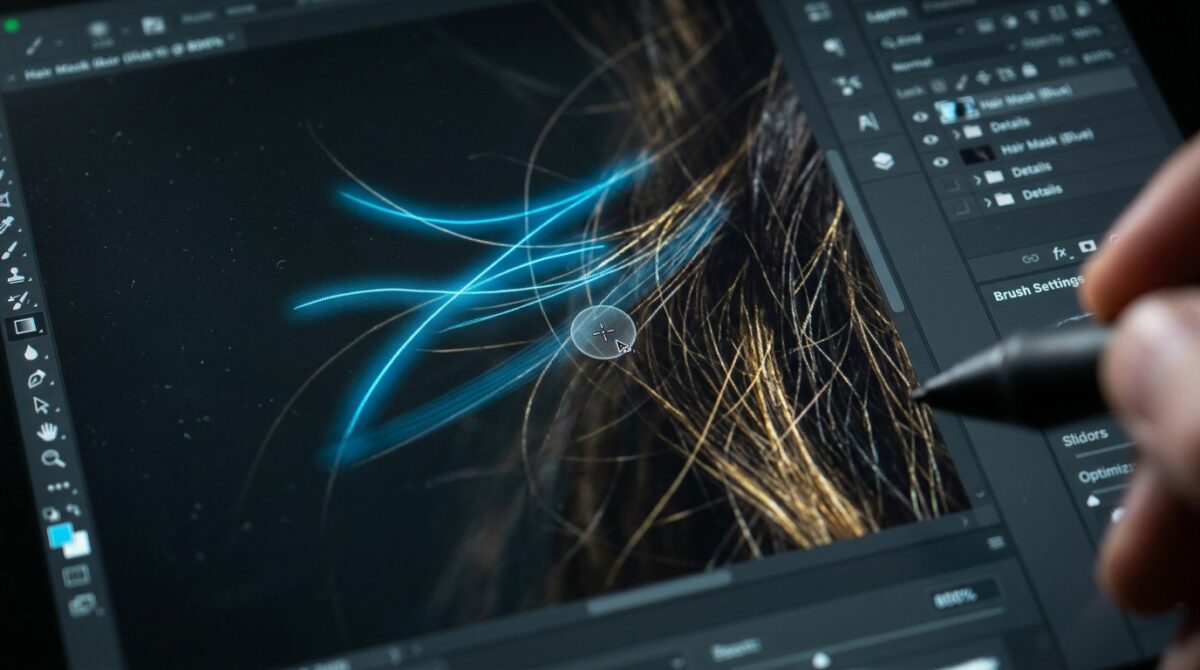
Solving Edge Halo and Fringe Artifacts When Extracting Fine Hair Against Complex Backgrounds in Photoshop
Extracting fine hair from complicated backgrounds is one of the most difficult things to do in professional photo editing. Stray hairs, transparent strands, soft edges, minor color variations make it difficult to completely differentiate a subject from the surrounding environment. Sometimes a selection that looks good in Adobe Photoshop might produce unsightly halos, color fringes, and rough edges when the subject is placed on a different background. These flaws can impair the image quality and make the portraiture unnatural and can lead to obvious issues in advertising graphics, commercial campaigns, digital publications and professional photography. Real Hair Extraction is not about selecting the subject and eliminating the backdrop. This includes the comprehension of edge transparency, mask refinement, color contamination correction and the inspection of the final composite under varied viewing situations. By using Photoshop’s selection tools, masking techniques, and edge control, designers may remove irritating artifacts while preserving fine hair details and creating natural-looking outcomes.
How to Avoid Halo and Fringe Artifacts with Hair Selections
Halo and fringe artifacts occur when an edge of a subject and its original background have unwanted pixels, hues or transparency. A halo is typically a light or dark border around the hair and a fringe is a thin band of background color around the edges you have extracted. These challenges exist because individual hair strands may contain a mixture of foreground and background information. Semitransparent fine hairs are often influenced by light from the original environment. When photoshop separates the topic part of that background color may cling around the borders or bleed through when placed against a new background. These artifacts are made more visible by bad selection boundaries, too much feathering, harsh contrast changes, and inappropriate mask settings. Complex backdrops like trees, patterned walls, brilliant windows or similar elements with a color close to that of the hair pose extra issues, as the hair could fade into surrounding details. We can select the proper corrective approach by differentiating between a selection error and a true color contamination. Do not iterate through the whole subject, but rather focus on the edge conditions that make the subject appear undesirable.
How to Use Select Subject and Select and Mask Well
In Photoshop, the Select Subject function is a great way to start isolating people from the background. The tool employs automated subject recognition to find the principal person or thing, decreasing the quantity of manual selection. But automatic picks can leave out individual hairs, join overlapping areas, or misinterpret locations where the hair mimics the background. After you make your first selection, enter the Select and Mask workspace to refine the border. Select a good preview mode to easily judge the hair edge, particularly in areas of complicated lighting or low contrast. The Refine Edge Brush looks at the edge between the foreground hair and the backdrop around it and can assist recover fine strands. Brush carefully over trouble spots instead of indiscriminately painting the whole head. Over refining may lead to uneven transparency or loss of real hair detail. Adjust brush size according to diameter and complexity of strands . Check both thick hair areas and isolated flyaway hairs. Good choice ? export as a layer mask so you can still undo any subsequent corrections.
Fine-Tuning Layer Masks to Preserve Fine Hair Detail
Layer masks control exactly which elements of an extracted topic are visible. A mask is better than erasing the backdrop pixels forever, because it gives designers the ability to bring back those hidden features or modify the edge if necessary. After you’ve done the initial hair selection, look attentively at the mask for any missing strands, ragged edges, and areas where the backdrop still shows through. The layer is shown in white, hidden in black, and partially transparent in gray. This range of values is important for rendering fine hair, as individual hairs generally require more subtle transitions than solid surfaces like clothing or skin. Make subtle repairs around fragile edges using a light brush at low opacity. If you have thick hair with obvious edges, you might want to use a harsher brush, but on thin strands it may produce an odd cutout effect. Zoom in on each individual hair, and zoom out often to see the overall silhouette. Do not over-smooth the entire mask or you will destroy natural texture and make the subject look unnaturally blurred. A well tuned mask keeps the actual hair structure, while making the extraction flexible and customizable.
Decontamination of Hair from Background Color
Color contamination is when the original background affects the color of the hair at the margins that you can see. For example, a blonde hair shot against a green background may have a green fringe after extraction, a dark hair against a brilliant wall may have a pale edge. Changing the mask cannot always correct these artifacts since the undesired color may be present in the edge pixels. In Photoshop’s Select and Mask workspace, you may use the Decontaminate Colors option to replace some of the edge colors that have become contaminated with colors sampled from the subject. However, the result depends on the original photos and the contrast of hair and background. Apply this correction carefully, and see if it has affected natural hair tones or created fake transitions. A second technique is to make a separate correction layer using an appropriate blending mode and properly sampled color to cancel out the undesired fringe. Use a mask and limit the correction to the damaged regions. Don’t attempt to address a problem that arises solely at the hair edge with heavy-handed global color corrections. Targeted color correction usually retains more realistic detail, and retains the subject looking like it did originally.
Fixing Light and Dark Halos Around Extracted Hair
The selection border may include some pixels from the original backdrop or the mask adjustment may generate a strange transition. Light and dark halos may happen. A light outline may stand out when black hair is against a light background, and a dark fringe may emerge surrounding pale hair on a bright canvas. Start by placing the extracted subject on top of the background you want to change, or on a temporary contrasting layer. This makes the problem easier to evaluate than looking at the object against the default transparency pattern of Photoshop. In Select and Mask, Shift Edge can nudge the selection boundary in or out a little bit, and Feather softens the transition. Be careful with these modifications, too much inward shift might chop off small strands, and too much feathering can generate a blurred outline. If the halo is visible, look for partially selected background areas in the mask and repair only those areas. Sometimes a bit of manual mask painting gives a cleaner effect than applying a strong global adjustment. Compare the subject against light and dark backgrounds to ensure that the correction eliminates the artifact without losing natural hair texture.
Working with Low Contrast Backgrounds and Complex Backgrounds
Complex backdrops make extraction circumstances challenging, as the subject and its surroundings may have comparable colors, brightness levels or textures. Automatic selection tools can be less reliable with: Dark hair on dark vegetation Blonde hair on bright walls Curly hair on patterned surfaces In these cases, start by locating the locations where the hair edge is most easily definable, and use these areas to make a good decision. Instead of trying to refine all edges equally effectively with a single automated operation, refine the more problematic sections separately. The Pen Tool is good for drawing precise pathways around substantial, well-defined features, but it is not generally ideal for tracing every fine hair individually. The Refine Edge Brush and channel-based choices and carefully adjusted masks may give superior results for delicate strands. Channels can be especially effective if one of the color channels has more contrast between the hair and the background. Check the available channels to see whether a duplicate channel can provide a more accurate mask. Frequently, using a combination of selection approaches will yield better results than using a single selection technique. The idea is to keep authentic hair detail while deleting enough background information to let the subject fit in seamlessly with its new surroundings.
Using Channels and Advanced Masking Techniques
Channel-based masking is an alternative to the usual selection tools when dealing with fine hair or low-contrast edges. In Photoshop, different color channels might reveal variances in the brightness of the subject and backdrop that aren’t visible in the full-color image. To try this technique, open the Channels panel and view the red, green and blue channels separately. Select the channel that best separates the hair. Before you do anything make a copy of that channel so you can keep the original image information. Use Levels or Curves to improve the contrast between subject and background to produce a more usable grayscale mask. But strong modifications can ruin delicate detail in the hair or create holes in the subject, so you may need to manually paint and selectively tweak the mask. Once you’ve created the mask, apply it to the original image layer and see how it looks on the new backdrop. Channel based methods work especially well for photos that have wispy hair, backlighting or complex backgrounds. These take more preparation than automatic selections, but they can be more controlled when the initial contrast conditions make normal approaches inaccurate.
Natural Hair Compositing Final Quality Checks
A competent extraction should still look believable at all zoom settings and on diverse backgrounds. When the mask and edge repairs are done, place the subject in the composition that you want and look at the hair boundary at normal view size. Zoom in so you can see the background pixels individually, with uneven transparency and color fringing that can be hard to see when viewing the whole image. Then zoom out to check that the hair still looks natural and you haven’t taken away too much volume or texture in the extraction. Check crucial areas including the crown, temples, shoulders, and individual flyaway strands. Be especially wary with hair shot against the light . Translucent borders may need to preserve some of their original luminance to look good . If the subject looks abnormally sharp against a softer background, change the overall composition rather than softening the entire hair mask. Save the final output as a layered PSD file so you can adjust correction layers and masks. Export as a separate delivery copy with the necessary image format and color settings.