Categories
Photoshop

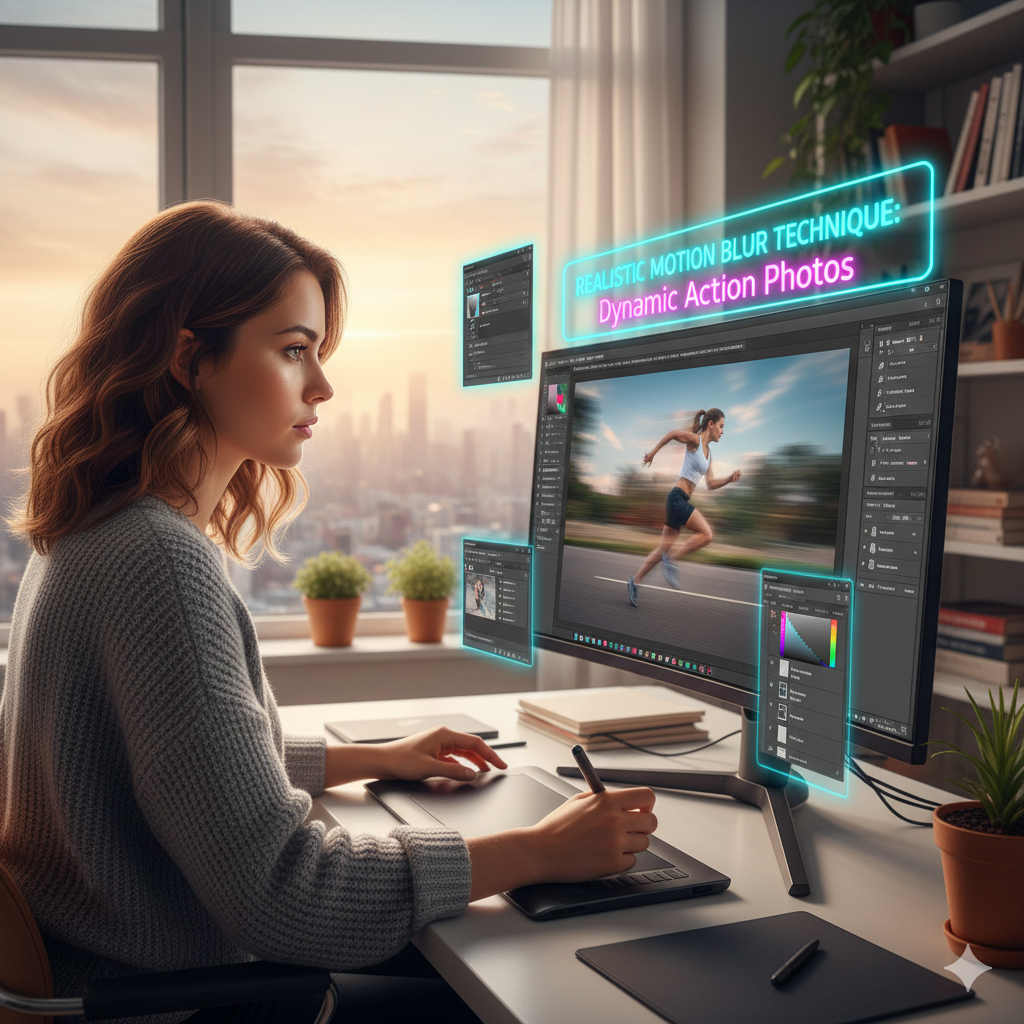
Realistic Motion Blur Techniques for Dynamic Action Photos

Realistic Motion Blur Techniques for Dynamic Action Photos

Motion blur is an essential technique in photography and digital editing, as it allows for the communication of speed, movement, and energy in situations that include dynamic motion. The proper use of this technique has the potential to convert a static photo into a visually appealing moment that has a sense of life. The creation of realistic motion blur in Photoshop may be accomplished in a number of different ways, ranging from the fundamental directional blurring method to more complex layer-based techniques that maintain subject clarity while putting an emphasis on movement.

Recognizing the Role of Motion Blur in Photography and Digital Design
A natural phenomenon known as motion blur takes place when an object moves rapidly in relation to the shutter speed of the camera, resulting in streaks or trails that give the impression of velocity. It is possible to imitate motion blur in digital editing in order to improve the appearance of a static picture, draw attention to movement, or provide creative effects. When it comes to achieving realism, it is essential to pay attention to the perspective, light direction, and subject motion of the picture. In many cases, photos that are overused or uniformly blurred look to be manufactured.

The process of preparing the image by isolating the subject layers:
Using selection tools like as the Pen Tool, Object Selection, or Layer Masks, you should first isolate the moving subject from the backdrop before applying motion blur to the image. By converting the subject into a Smart Object, you can assure that the editing process is non-destructive. This allows you to make modifications to the blur strength, angle, and masking without affecting the original picture. In order to achieve a realistic blur application that does not disturb the surrounding environment, background separation is a necessary component.

It is possible to apply directional blur to linear motion.
The Motion Blur filter, which can be found by going to Filter > Blur > Motion Blur, is the most basic approach for rendering motion simulations. The subject’s trajectory may be imitated by using this filter, which gives you the ability to select both the angle and the distance of blur. It is important that the angle be in line with the direction of motion when it comes to linear motion, such as while running, cycling, or driving a vehicle. Adjust the distance so that it corresponds to the speed that is felt; movement effects that are quicker are produced by longer distances.

When dealing with complex motion, using path blur
When it comes to curved or irregular movement routes, the Path Blur feature of Photoshop (Filter > Blur Gallery > Path Blur) offers a larger degree of autonomy. You have the ability to build your own bespoke motion routes using Path Blur, allowing you to alter the speed and taper along the trajectory. The exact modulation of blur intensity at various places is made possible by direction arrows and speed lines, making them ideal for spinning objects, dynamic postures, or erratic sports motions.

How to Distinguish Between Background and Foreground Blur
Different blur treatments are often required for the backdrop and the foreground in order to preserve the sense of realism. At the same time as their surrounds are blurred to mimic relative motion, subjects that are moving quickly may maintain their sharpness. The backdrop layer should be duplicated, the copy should have a greater blur applied to it, and regions where the subject is still in focus should be painted over. With this distinction, depth and speed are brought to the forefront, allowing the subject to stand out while maintaining the context of the surroundings.

The use of layer masking for the application of controlled blur
When it comes to carefully adding blur, layer masks are really necessary. When painting on a mask, using a soft brush provides for seamless transitions between sections that are crisp and others that are blurred. As an example, the wheels of a bicycle may be severely blurred, but the torso of the rider may stay clear. Natural trails are created by the use of gradual masking, which helps to eliminate sharp edges that might ruin the sense of motion.

The Development of Speed Trails to Achieve Dynamic Impact
The subject layer should be duplicated, motion blur should be applied to it, and it should be placed underneath the original subject for an additional dramatic impact. The opacity should be decreased, and areas should be masked, in order to produce semi-transparent trails that simulate rapid movement. In order to create the sensation of acceleration and kinetic energy, this approach is particularly useful for sports photography, as well as for cars and action sequence videography.

Enhancing Motion Through the Use of Radial Blur for Circular Movements
For the purpose of mimicking rotating or zoom effects, the Radial Blur effect (Filter > Blur > Radial Blur) is an excellent choice. While the Zoom mode puts more of an emphasis on forward or outward movement, the Spin mode attempts to simulate circular motion. You may add Radial Blur in a non-destructive manner by using a Smart Object, and then change the center point such that it corresponds to the subject’s pivot. With the use of layer masks, the effect may be integrated more organically without influencing the elements of the backdrop.

Making Changes to the Light and Highlights During the Motion
Because motion alters how light is perceived, blurring often necessitates making modest modifications to either the brightness or contrast. In order to keep the layers that are blurred looking realistic, you may use Curves, Levels, or Dodge and Burn. It is possible to accentuate directionality by using highlight streaks, and preventing artificial glow or overexposure by reducing the brightness of trailing sections would be beneficial. By making tweaks to the color and tone, blur may be made to blend in perfectly with the whole picture.

Combining a Number of Different Blur Types to Achieve Additional Realism
The use of Motion Blur, Path Blur, and Radial Blur in conjunction with one another produces layered effects that are capable of capturing intricate movement in extremely dynamic settings. For the purpose of achieving autonomous control, every form of blur should be placed on its own Smart Object layer. The final composition may be improved by adjusting the blending, masks, and opacity settings. Through the use of this layered method, you are able to accentuate speed, direction, and energy while yet preserving visually clear information.

Some last touches to ensure cohesion and a professional appearance
After motion blur has been applied, the picture should be examined for any irregularities, such as ghosting, edge halos, or overlaps that do not seem natural. Maintaining focus on the topic may be accomplished by the use of soft masks, extra layer changes, and selective sharpening. It is possible to further increase the feeling of speed and depth by using subtle gradients or vignette effects, which will complete a composition that is polished and focused on motion.

Finally, Bringing Action to Life in Conclusion
Through the use of realistic motion blur, motionless photographs may be transformed into dynamic and visually interesting scenarios. Using a combination of layer-based processes, directional and path-specific blurring, masking, and lighting tweaks, editors are able to replicate natural movement while yet preserving the clarity of the subject. Once you have mastered these approaches, you will be able to create action photographs of a professional standard that are suited for editorial, commercial, sports, or film projects.
Categories
Photoshop

Techniques for Creating Depth Through the Use of Blend Modes and Gradient Maps


When it comes to digital art and picture editing, depth is now one of the most effective visual tools available. An picture that is flat and commonplace is transformed into something that is rich, dimensional, and emotionally captivating as a result of this. In addition to the fact that lighting and perspective contribute to the creation of physical depth, Photoshop provides an artistic method of adding visual depth via the use of Blend Modes and Gradient Maps.

When used in conjunction with one another, these two tools provide you the ability to precisely alter tone, color, and mood, therefore constructing layers of light and atmosphere that give your photographs a sense of presence. Learning how to handle gradient maps and blend modes will give your work the cinematic depth that pros depend on. This is true whether you are working on improving portraits, landscapes, or graphic compositions.

Recognizing the Meaning Behind the Concept of Visual Depth

When it comes to visual depth, distance is not the only factor that matters; how your eye interprets contrast, saturation, and light all plays a role.
The topic is brought to the viewer’s attention while also establishing a feeling of spatial hierarchy. Putting it another way, your brain is able to choose where to concentrate and how to interpret the “layers” of the sight.

Light control, color contrast, and tonal variation are tools that may be used in Photoshop to create the illusion of depth. These aspects are combined via the use of Blend Modes and Gradient Maps, which enables you to manipulate the way in which colors and tones interact with one another without having to physically redraw or re-light your picture.

How Do You Define a Gradient Map?

The tones of a picture may be remapped using a Gradient Map, which is based on a gradient, which is a consistent transition from one hue to another. After analyzing the brightness values of your picture, it replaces them with the colors that you choose in the gradient. The brightness values range from dark to light.

Just one example:

  • It is possible for shadows to take on a cool blue or purple color.
  • It’s possible that the midtones will turn into warm neutrals or golden highlights.
  • There is a possibility that bright regions may become softer creams or mild yellows.

During this procedure, the picture is not only recolored, but it also receives an emotional and atmospheric dimension, which assists you in guiding the perspective of the spectator further.

What Makes Gradient Maps Such an Effective Tool

Gradient Maps, in contrast to color overlays or picture filters, interact directly with the information that pertains to tonal values. This indicates that the end product has a more holistic and realistic feel to it. You are not only altering the hue of your picture; rather, you are influencing the how color behaves inside it.

What makes gradient maps so effective is that:

  • They are able to follow the light structure of the picture.
  • They contribute to oneness of colors and tones.
  • They are able to imitate motion picture color grading.
  • They provide a dramatic and immersive quality to digital photos that are otherwise flat.

This method becomes much more adaptable when used with Blend Modes, which opens up a world of possibilities for artistic expression.

The first step is to have your base image ready.

To get started, choose a picture that has a decent range of tonal values, meaning that it has highlights, midtones, and shadows. Launch Photoshop and open it.

You might begin by balancing your picture by using the Levels or Curves tool if it seems to be artificially bright or flat. In order for Gradient Maps to behave in a more natural manner and deliver better outcomes, proper tonal distribution is essential.

Because Gradient Maps depend on tonal range to establish depth, you should steer clear of photos that are too compressed or otherwise lacking in contrast.

Installing a Gradient Map Adjustment Layer is the second step.

Proceed to Layer > New Adjustment Layer > Gradient Map from the menu. Your picture will be accompanied by a new layer that has a preset black-to-white gradient added to it just above it.

Your picture is effectively converted to grayscale via the use of the color mapping system as a result of this action, which instantly maps dark parts to black and bright areas to white. There is no need to be concerned about the loss of color just yet; soon, you will be redefining those tones.

Third, personalize your gradient to your liking.

To access the Gradient Editor, you will need to click on the gradient preview that is located in the Properties panel.

You have the ability to specify your own unique color transitions here. Among the most common pairings for producing depth are the following:

  • A cinematic look is achieved by combining deep blue shadows with warm orange midtones and pale highlights.
  • With a vintage depth, the green shadows are muted, the midtones are beige, and the highlights are soft cream.
  • Charcoal shadows, neutral grays, and dazzling whites are comprised of the dramatic tone.

Focus on gradual alterations rather than dramatic contrasts while conducting your experiments. Always keep in mind that harmony, not saturation, is the source of depth.

When you are happy, click the OK button; your picture will now have a tonal color mapping that has been styled.

The fourth step is to switch the blend mode.

The Gradient Map will cover the whole of your picture by default for you. Modify the Blend Mode of the layer to get a more naturalblending effect.

The following are some of the blend modes that are very useful for producing depth:

  • The use of soft light provides a subtle contrast and depth of color.
  • Increases the intensity of colors and shadows to create a more striking appearance.
  • Color: Replaces colors while preserving the brilliance of the original.

Brightness is affected by luminosity, which does not change the color palette that was used initially.

Each blend mode has a unique way of interacting with the tones that are below it. Experiment with switching between them to see which one best matches the lighting and atmosphere of your photograph.

Next, adjust the opacity to get a subtle effect.

High-impact color effects have the potential to completely dominate the original picture. For more precise control over the strength of your Gradient Map, you may use the Opacity slider.

When it comes to achieving a balanced and convincing appearance, an opacity that falls between 20% and 50% is often sufficient to add richness without seeming manufactured.

You may think of opacity as a knob that controls the depth of the image: lower values make the transition more subtle, while higher values accentuate the contrast and the emotion of the color.

The sixth step is to control the focus by using layer masks.

Adding a Layer Mask to your Gradient Map will allow you to generate depth that is localized. A soft black brush should be used to paint over parts that you wish to remain lighter or unpainted. Some examples of such areas are faces, focus items, and foreground components.

You will be able to replicate depth of field using this system. In order to create the impression that your picture is organically layered, for example, you may reduce the intensity of the gradient effect in the background while maintaining its intensity in the middle area.

You are able to control the focus of the viewer by using masks, which ensures that the viewer’s eye goes precisely where you want it to.

Multiple gradient maps are stacked in the seventh step.

Complication is often the home of depth. When you want to create subtle tones, you may construct them by layering numerous Gradient Maps that have distinct color schemes and mix modes.

As an example, one Gradient Map may be used to create an overall warm atmosphere by using Soft Light, while another could be used to provide chilly shadows by employing Color or Overlay. Modify the opacity of each layer until they blend together in a beautiful manner.

By simulating the way light interacts with surfaces in the actual world, this approach creates layers of warm and cold reflections that provide the impression of depth and an authentic appearance.

In the eighth step, you will refine the blend mode interactions.

Blend Modes are the place where one’s creative potential flourishes. When you combine Gradient Maps with other layer types, such as Curves, Solid Color Fill, or Selective Color, be sure that each of these layer types is set to a separate blend mode.

Just one example:

  • When molding the basic tone, a Soft Light Gradient Map should be used.
  • To make the shadows more intense, add a Multiply layer.
  • Reintroducing highlights may be accomplished by placing a Screen or Overlay layer.

It is possible to achieve controlled dimensionality by layering these modes in a strategic manner. This allows the subject to seem as if it is integrated within its lighting environment rather of appearing to be pasted on top of it.

Step Nine: Apply Adjustment Layers to Complete the Detailing of Your Project

Adjustment layers like as Color Balance, Vibrance, and Curves may be used to further modify the overall tone after your depth appearance has been brought into harmony.

Use color balance to bring the colors of the shadows and highlights into harmony with one another, so guaranteeing that the transitions seem natural. In order to prevent results that are too digital, slightly reduce the saturation.

It is important to keep in mind that the fundamental measure of visual depth is realism, not the number of layers, but rather the degree to which each layer adds to the overall effect.

Step Ten: Save the Preset and Use It Again and Again

Save the gradient you’ve created in the Gradient Editor as a custom preset if you come up with a gradient that is exceptionally effective. You will be able to rapidly apply the same level of depth and tone to a number of different photographs or projects thanks to this.

It is possible for your visual identity to be a subtle hallmark that distinguishes your style, and consistency in gradient mapping and blending may become a component of that identity.

Avoiding the Most Frequent Errors

Utilizing excessive gradients: Colors that are too intensely contrasted disrupt the flow of tonal values and seem unnatural.

  • As a result of skipping masks, the application of effects flattens rather than improves the depth of the image.
  • Ignoring the direction of the lighting: Gradient tones should be respectful of the light source that is already present in the picture.
  • Excessive saturation: True depth is achieved via the regulation of color harmony rather than through intensity.
  • It is the subtlety that differentiates good color grading from editing that is done with a hard hand.

Determining the Form of Light Through Color

It’s not only about shadows or perspective when it comes to creating depth in Photoshop; more importantly, it’s about feeling. Through the use of Gradient Maps and Blend Modes, you are able to paint with light and shape with color, so changing everyday photos into narratives that include contrast and space.

Each and every gradient that you create is a conversation between the environment and the tone. Through the process of learning how to balance these tools, you will begin to grasp one of the most creative qualities that Photoshop has, which is the capacity to make flat pictures appear alive, dynamic, and timeless.

Depth is not added; rather, it is discovered via the subtle interaction of color, light, and your creative vision.

Categories
Photoshop

Utilizing Photoshop Techniques to Create Viral Thumbnails for YouTube

Utilizing Photoshop Techniques to Create Viral Thumbnails for YouTube

The thumbnail that you use on YouTube is more than simply an image; it is the initial impression that people get of your video, your silent salesperson, and it is often the single most important element that determines whether someone clicks on your video or scrolls past it.

In the event that the thumbnail fails to capture attention within a fraction of a second, even the most excellent video may have difficulty gaining momentum. To your good fortune, Photoshop provides you with everything you want to create thumbnails that not only stand out but also convert views into subscribers who remain loyal to your channel.

If you are able to grasp a few fundamental Photoshop principles, such as composition and color psychology, you will be able to design thumbnails that pique the viewer’s interest, convey what they are feeling, and blend in perfectly with the visual identity of your channel.

A Look at the Thought Process Behind Clickable Thumbnails

It is essential to have a solid understanding of what makes a thumbnail clickable before delving into the more advanced Photoshop capabilities.

Contrast, passion, and clarity are all things that the human eye is attracted to. Not only does a good thumbnail look attractive, but it also conveys instantaneous information about the content. Consider it to be the movie poster for your video; it ought to elicit an emotional response from viewers even before they start playing the video.

Each of the most successful thumbnails have three characteristics in common:

  • In terms of clarity, the topic is immediately recognized, even when it is reduced in size.
  • Emotion: Curiosity may be triggered by facial emotions or visually striking images.
  • When there is a clear distinction between the foreground and the backdrop, contrast stands out and draws attention.
  • A deliberate design of these characteristics may be accomplished using Photoshop by making use of certain tools and effects.

Beginning with the Appropriate Canvas Size is the First Step

Start with the right proportions for the YouTube thumbnail, which are 1280 pixels wide by 720 pixels tall and 72 dots per inch.

To input these values, open Photoshop, choose File > New, and then enter them. It is important to maintain exact dimensions in order to guarantee that your design appears clear on all platforms, including smart TVs and smartphones.

When YouTube presents your video on multiple screens, it is beneficial to establish a safe zone, which is around five percent of the total width on both sides. This ensures that nothing of significance, such as text or objects, is cut.

Second Step: Select an Eye-Catching Picture

A powerful picture serves as the main component of each and every thumbnail. There must be a clear representation of the subject matter of the video, regardless of whether it is a still frame from your film or a prepared snapshot.

In order to improve the brightness, contrast, and color of an image, you may use the Camera Raw Filter or the Levels/Curves adjustments in Photoshop.

If the backdrop seems to be overly congested, you may get rid of it by utilizing the tools that are called Select Subject and Remove backdrop. The impact of a thumbnail is immediately increased by having a clean composition, particularly for thumbnails that include people or items.

The Third step is to include facial expressions to provide emotional focus.

Faces of people are the focus of attention. In the event that your film include a host or speaker, you should choose a frame that depicts a powerful emotion, such as surprise, enthusiasm, astonishment, or interest.

Using the Liquify > Face-Aware Liquify command in Photoshop, you may gently improve the emotions of your images. Because of this, it is possible to make subtle alterations to the contours of the lips, eyebrows, or eyes without making them seem fake.

Utilize the Dodge Tool to brighten eyes and the Burn Tool to provide depth to shadows in order to get a higher level of clarity. Despite the fact that they are just thumbnail size, these subtleties make expressions stand out.

The fourth step is to make elements stand out by using contrast.

The visibility is driven by contrast. Using Brightness/Contrast, Levels, or Curves, you may create a divide between your subject and the backdrop of your illustration.

When you duplicate the subject layer, apply a Drop Shadow, or use the Outer Glow effect with a hue that is complimentary to the subject layer, you may also give depth to the image.

The use of this slight halo effect results in visual lift, which makes the topic seem to be separated from the backdrop and makes it more noticeable on YouTube feeds that are already rather crowded.

Text that is bold and easy to read is the fifth step.

It is important that the text be brief yet effective. Simply a few words, preferably less than five, is sufficient.

Employ powerful sans-serif typefaces such as Montserrat, Bebas Neue, or Impact instead of serif fonts. It is important to keep the message brief (for example, “Before & After,” “Big Mistake,” “Secret Trick,” etc.) and to position it in a strategic manner.

Applying effects such as Stroke, Drop Shadow, or Gradient Overlay will provide the text with the ability to be read against any backdrop. Never depend just on color; contrast is your ultimate ally in this endeavor.

Utilize writing that is white or brightly colored over dark backgrounds, or text that is black over bright backgrounds, for the highest possible level of clarity.

Making Use of Color Psychology to Drive Emotion is the Sixth Step

Emotion is evoked more quickly by color than by words. Color contrast and emotive tones are two factors that have a significant impact in viral thumbnails:

  • Urgency, enthusiasm, and energy are all conveyed via the color red and yellow.
  • Indicating trust and authority, blue is shown.
  • Green is associated with expansion or happiness.
  • Both pink and purple are associated with originality and innovation.

It is possible to fine-tune tones in Photoshop by using either Gradient Maps or Selective Color changes. It is important to avoid oversaturation; a modest increase in brightness is often sufficient to stand out without seeming to be cheap.

Step Seven: Include Dramatic Lighting and Effects

Adding lighting to your thumbnail gives it life. Applying the Dodge and Burn method in Photoshop will allow you to sculpt light and shadow around the subject’s face or item inside the image.

Make a new layer with the Soft Light setting, fill it with gray that is fifty percent complete, and then paint it with white (for highlights) and black (for shadows) in a gentle manner.

Additionally, in order to emulate cinematic lighting, you may apply a minor Lens Flare or Radial Gradient from the corners of the image. It is possible to immediately attract attention to the center of your thumbnail by strategically placing a light behind the topic subject image.

Applying color grading to ensure consistency is the eighth step.

Establishing a brand identity requires consistent color grading. Make use of Color Lookup Tables (LUTs) or Gradient Maps in order to keep the feel of all of your thumbnails consistent with one another.

When seen via YouTube’s bright interface, warm, high-contrast appearances often perform better than other formats because they seem more animated. Content in the fields of technology, science, or analysis might benefit from cool tones.

Your audience will be able to easily identify your films if you build a trademark color grade, which will ultimately lead to an increase in click-through rates over time.

The ninth step is to use the blur technique to create depth.

Background blur is a technique that is often used by the most talented authors.

Convert your backdrop layer into a duplicate, add Gaussian Blur, and make sure the subject remains crisp. This simulates the depth-of-field of the camera, directing the attention of the viewer to the most important element.

If you want to add some energy or imitate movement, you can even generate a tiny motion blur effect on the items that are in the backdrop. You want the effect to have a cinematic sense, rather than an artificial one, therefore subtlety is essential.

Add Branding Without Creating Clutter is the Tenth Step

Your brand should be promoted without there being any distractions in your thumbnail. Include smaller, more consistent characteristics of your brand, such as:

  • One of the corner logos or channel icons.
  • A color that appears repeatedly in the backdrop.
  • An unchanging typeface or border throughout.

Make sure to keep it understated; the logo should not dominate the thumbnail but rather assist identification. Instead of clicking on the logo, viewers are interested in the content, therefore make sure the message is the focal point.

The eleventh step is to test variations.

Alterations to the design, even little ones, may have a significant impact on performance. You may save numerous thumbnail versions by using the Layer Comps function in Photoshop. For instance, you might save one version with strong lettering and another version with muted tones.

After that, you may do an A/B test on YouTube by swapping thumbnails after a few hours and determining which one has a greater click-through rate (CTR). This, over time, helps improve what visually connects with your audience and what they find appealing.

Avoiding the Most Frequent Errors

The amount of text is excessive; viewers should read it immediately.

  • Those thumbnails that blend in with the white backdrop of YouTube are overlooked because of their low contrast.
  • Cluttered layouts: Maintain a single, distinct focus, whether it is a person, a product, or a scenario.
  • When emotion is ignored, facial emotions or expressions always perform better than neutral pictures.
  • As a result of excessive manipulation, photographs that are oversaturated or oversharpened seem untrustworthy.
  • Bear in mind that the purpose of a thumbnail is not to explain, but rather to captivate.

Creating Content for the Scroll

A viral thumbnail is a combination of art and psychology in equal measure. In a fraction of a second, it is about capturing the attention of the audience, implying that there is a narrative, and providing value.

You have access to all of the tools that Photoshop provides, including contrast, composition, lighting, and color, which allow you to mold feelings and visual rhythm. On the other hand, success is not only dependent on consequences. Understanding how your audience reacts when they view your picture is the key to unlocking this potential.


Your thumbnail becomes into a visual invitation when it is produced with careful consideration; it is an invitation that does not only request a click but rather deserves it.