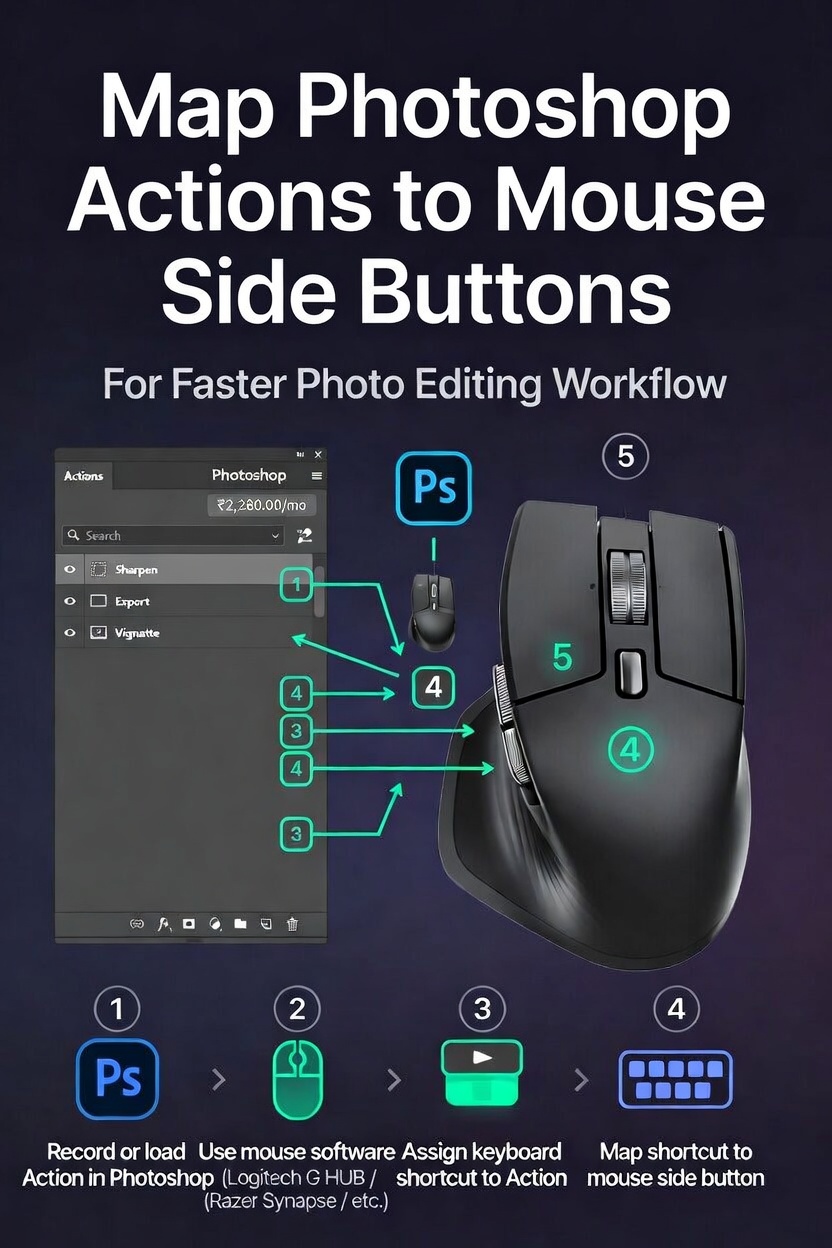
How to Map Photoshop Actions to Mouse Side Buttons for Faster Editing
In today’s digital processes, speed and efficiency are of the utmost importance, particularly when working on intricate picture modifications that need accuracy and repetition. Despite the fact that Adobe Photoshop provides strong automation with Actions, a significant number of users continue to depend significantly on keyboard shortcuts or manual clicks, which may slow down productivity over time. Editors are able to initiate instructions instantaneously without interrupting their creative flow when they map Photoshop Actions to mouse side buttons. This technique is more ergonomic and streamlines the interface. This method is especially helpful for designers, photographers, and content producers who often do alterations that are repetitive in nature, such as scaling, color correction, or layer tweaks. You may dramatically cut down on the amount of time spent editing by combining mouse customisation software with the automation capabilities that are available in Photoshop. This will also increase consistency across all of your projects. Beginning with a grasp of the fundamentals of Actions and progressing all the way up to the configuration of sophisticated button mapping schemes that improve speed and workflow optimization, this tutorial covers the whole process.
Acquiring Knowledge of Photoshop Actions and the Functions They Play in Automation
Actions in Photoshop are simply recorded sequences of actions that may be replayed in order to automate operations that are performed repeatedly as intended. The application of filters and the modification of layers, as well as the scaling of photos and the exporting of files in certain formats, are all options that fall under this category. Users remove the need to manually repeat the same procedure for several photographs by recording an action just once. This is particularly helpful in situations when they are altering multiple images at once. Actions are saved inside Photoshop, and they may be arranged into sets for the purpose of making them more accessible and simpler to manage. These activities become much more potent when they are combined with external input devices such as a mouse since they may be carried out instantaneously. This level of automation prevents errors caused by humans and guarantees that the outcomes of all projects are consistent with one another. It is essential to have a solid understanding of how actions function in order to correctly map them to mouse side buttons and enable speedier editing processes.
How the Side Buttons on the Mouse Help to Increase Editing Speed
To boost productivity beyond the capabilities of basic clicking and scrolling, modern mice often feature extra programmable buttons on the side of the device. It is possible to personalize these side buttons so that they carry out certain duties, such as activating keyboard shortcuts or carrying out programming macros. When used in conjunction with Photoshop, they provide a haptic and instantaneous method of accessing operations that are commonly utilized, allowing you to avoid moving your hand away from the mouse. You will experience less tension and fewer disruptions in your productivity as a result of this, which will allow for more seamless transitions between jobs. When it comes to professionals who spend long hours working on meticulous edits, this ergonomic advantage may greatly boost both their productivity and their comfort. In addition, the process of assigning complicated multi-step operations to a single button push reduces repetitious editing jobs into a one-click operation, which in turn makes the whole editing process more efficient and user-friendly.
Selecting the Appropriate Mouse and Software for Customization on Your Computer
You will need a mouse that supports programmable buttons in addition to customizing software that is compatible with Photoshop Actions in order to map Photoshop Actions properly. Users are able to add instructions, macros, and shortcuts to each button on many high-performance mice since these mice come with specific configuration tools. The majority of the time, these solutions provide a user-friendly interface that allows you to set the behavior of buttons for certain apps such as Photoshop. By choosing a mouse that has buttons that are responsive and software that is dependable, you can guarantee that your custom mappings will function consistently and without any lag or mistakes. You should also choose a device that allows you to alter profiles. This will allow you to establish multiple settings for different software environments or jobs, which is another crucial consideration. By making an investment in the appropriate mix of hardware and software, one may establish the framework for an editing experience that is both fluid and efficient.
Creating custom actions in Photoshop and recording them for easy access
It is necessary to first develop and record the actions inside Photoshop before you can proceed with mapping them to your mouse movement. In order to automate a series of processes, you must first enter the Actions panel, then create a new action, and then record the sequencing of those steps. The recording process saves each step that you do, and you may use a single command to play back the recording at a later time. Keeping your actions clean and exact by minimizing extraneous stages is crucial, since this enables quicker execution and improved dependability. It is also essential to maintain your actions clean and accurate. Clearly naming your actions is also helpful when it comes to assigning them to mouse buttons in the future. You may drastically cut down on the amount of time spent on editing chores that are repetitive by constructing a toolkit that can be rapidly accessible and performed. This can be accomplished by developing a library of actions that are often utilized.
Connecting Shortcuts on the Keyboard to Buttons on the Mouse
Because the majority of mouse customisation software operates by imitating keyboard inputs, the first step in mapping Photoshop Actions is to set keyboard shortcuts to the actions that you want to map. Through its keyboard shortcut options, Photoshop gives users the ability to design their own unique keys for certain activities. You are able to configure your mouse button to mimic a certain key combination after you have set a shortcut to anything. This creates a connection between the action and the mouse button, which enables you to immediately activate the action. A careful selection of shortcut keys is required for the operation in order to eliminate any potential conflicts with pre-existing instructions. In order to build a workflow that is more user-friendly and integrates more fluidly with your mouse controls, you should match your keyboard shortcuts with your editing habits.
The process of configuring mouse software to accommodate application-specific profiles
You are able to set alternative button functionalities based on the program that you are running since the majority of sophisticated mouse software offers application-specific profiles. This function is very helpful for those who use Photoshop since it enables you to establish a customized profile that is specifically suited to your editing requirements. You have the ability to pick Photoshop as the program that you want to use inside the software, and you can also give individual instructions to each button. In this way, you can be certain that your mappings will only become active while Photoshop is being used, hence avoiding interactions with other apps. Through the process of fine-tuning these profiles, you will be able to better optimize your workflow for various sorts of editing activities, such as digital painting, graphic design, and picture retouching.
Working with Multi-Action Macros to Improve Workflow Optimization
The majority of mouse customization tools enable you to develop macros that carry out several instructions in a sequential order, going beyond the capabilities of basic action mapping. Using Photoshop Actions in conjunction with this functionality allows for the creation of processes that are quite effective. By way of illustration, the push of a single button might initiate a certain activity, make further modifications, and automatically save the file simultaneously. These multi-step macros are very helpful for repeated production processes due to the fact that they ensure consistency while also allowing for increased speed. You will be able to minimize unnecessary procedures and concentrate more on making creative decisions if you properly construct your macros. This degree of optimization turns your mouse into a strong control center for Photoshop, which enables you to work more quickly and with more precision.It is important to avoid making these common mistakes while mapping actions.
There are a number of typical mistakes that might diminish the efficiency of mapping Photoshop Actions to mouse buttons, despite the fact that this method provides major advantages. The assignment of an excessive number of functions to a restricted number of buttons is a significant problem that may result in confusion and inefficiency at the same time. Using activities that are too complicated and require an excessive amount of time to carry out is another error that undermines the objective of speed optimization. It is also essential to do exhaustive testing on your mappings in order to guarantee that they function in a consistent manner regardless of the circumstances. Maintaining a logical button layout and avoiding shortcut conflicts are two of the most important factors in developing a workflow that is seamless. Taking care of these issues at an early stage will allow you to guarantee that your configuration will continue to be dependable and effective throughout time.
Extraordinary Suggestions for Productivity at the Professional Level
For individuals who are interested in taking their workflow to the next level, there are a number of advanced strategies that might further boost efficiency. It is possible to get better control and flexibility by combining mouse button mapping with layer-based workflows, smart objects, and non-destructive editing approaches. There is also the possibility of improving accuracy during detailed edits by customizing the sensitivity levels and the responsiveness of the buttons. Additionally, if you organize your activities into classified groups, it will be much simpler for you to monitor and adapt your process as your requirements change. You may obtain a level of efficiency that greatly decreases turnaround time while retaining high-quality output if you continually refine your setup and adjust it to your editing style. This will allow you to accomplish your goal.