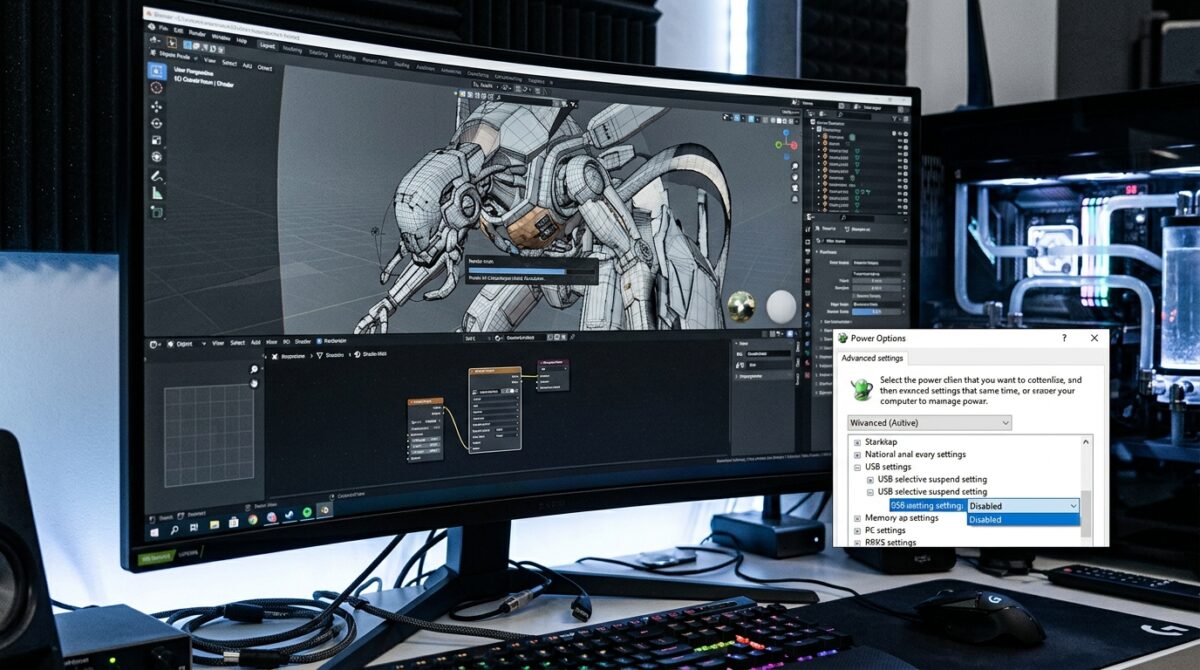
Disabling USB Selective Suspend to Stop External Drives from Disconnecting During Long Renders
Disconnections of external drives that occur unexpectedly during lengthy rendering sessions have the potential to interrupt workflows, destroy information, and waste precious processing time. USB Selective Suspend, a power-saving function that temporarily shuts idle USB ports, is one of the most prevalent causes of this problem in Computers running the Windows operating system. Despite the fact that this feature is helpful for reducing energy consumption, it has the potential to disrupt the continuous data access that is necessary for rendering or file transfers. It is possible for the system to suspend the connection in the event that it improperly labeled a drive as idle, which would result in disruptions. It is essential for professionals who deal with huge media files to keep their connection consistent while they are working with them. In order to guarantee that external drives continue to function normally during labor-intensive operations, it is necessary to disable USB Selective Suspend. It is possible to dramatically increase the system’s dependability by gaining an understanding of how this feature operates and how to regulate it. Users are able to avoid unanticipated disconnections and keep their performance running without interruption if they have the appropriate settings.
Comprehending the Concept of USB Selective Suspend
The purpose of the power management function known as USB Selective Suspend is to limit the amount of energy that is used by deactivating USB ports that are not being utilized. It does not completely turn off the USB controller; rather, it suspends particular ports that seem to be idle at a selective level. Not only does this assist increase the battery life of portable devices, but it also helps minimize total power consumption. The interpretation of inactivity that the system provides, on the other hand, is not always correct. There is a possibility that continuing processes will continue to need the use of external drives even if they are not being actively read or written at the present time. A temporary loss of connectivity occurs if the system suspends the port. The behavior in question has the potential to result in issues during lengthy processes such as rendering or exporting files. In order to determine the influence that this feature has on external devices, it is vital to have a solid understanding of how it operates. It provides an explanation for why disconnections may take place even while the drive is working.
For What Reasons Do External Drives Disconnect While Rendering?
Even if they are a part of the process, it is possible that lengthy rendering activities may not allow for continuous access to external storage. It is possible that the system may consider these small periods of inactivity to be idleness and will then activate USB Selective Suspend. When something like this occurs, the drive is essentially unplugged, which causes the process to interrupt. Failure to render, missing files, or program failures are all possible outcomes of this situation. With power-saving options enabled by default, the problem is more likely to occur. There is a tension between aggressive power management and high-performance workloads because high-performance tasks demand persistent device availability. Recognizing this discrepancy contributes to the explanation of the underlying source of the issue. Specifically, it emphasizes the need of modifying system settings to accommodate professional workloads. It is necessary to prevent these disconnections in order to preserve the stability of the workflow situation.
Using the Power Settings to disable the USB Selective Suspend feature
Disabling USB Selective Suspend in the power settings of Windows is the most straightforward method for preventing undesired disconnections from occurring. Within the advanced settings of the active power plan, you will find this provision accessible for selection. By disabling this function, the system is given the instruction to ensure that all of its USB ports remain operational at all times. It is because of this that external drives are able to maintain their connection regardless of the amount of activity. The modification is applicable throughout the whole system and has an impact on all USB devices. Switching off this function is especially advantageous for desktop computers, which have a lower concern about power usage than other types of computers. It offers a steady atmosphere for activities that take a long time to complete. Despite its apparent simplicity, this modification is quite efficient at reducing interruptions.
Configuring the Power Settings of the Device Manager
It is possible to customize individual USB controllers using Device Manager, in addition to the power plan parameters already available. Every USB Root Hub comes with a power management option that enables the system to shut down the device in order to save power. Disabling this option guarantees that the controller will continue to function normally. To further guard against disconnections, this offers an extra layer of safety. Making adjustments to these parameters is a complementary action to the modifications made to the power plan. By working together, they provide a USB environment that is more dependable. This method is particularly helpful for systems that have a number of USB controllers. It is possible to increase the overall stability of the gadget by ensuring continuous power supply.
Performance and power consumption in a state of equilibrium
Disabling USB Selective Suspend results in an increase in power consumption, which may be a cause for worry for portable electronic devices. Users are required to strike a balance between the requirement for performance and the need for energy efficiency. while it comes to laptops, it could be advantageous to deactivate the function only while the device is actively linked to a power source. It is possible to achieve flexibility depending on consumption conditions by switching between different power plans. When it comes to power savings, regular usage may emphasize power savings, but high-performance jobs demand reliability. Users who have a better understanding of this trade-off are better able to make judgments. It is possible to get ideal performance without using excessive amounts of energy by adjusting settings according to the circumstance. It is essential to strike this balance in order to keep both efficiency and dependability intact.
Conducting Stability Tests Following Configuration Alterations
In order to verify that the problem has been fixed, it is essential to test the system once the USB Selective Suspend feature has been off. For the purpose of verifying stability, running a lengthy render or a continuous file transfer might be helpful. The monitoring of the connection during these processes ensures that any disconnections that may have occurred have been eradicated. Additional considerations, such as the quality of the connection or any hardware flaws, should be investigated if the problems continue to occur. Testing gives assurance that the modifications made to the configuration are doing their intended job. Identifying any issues that may still exist is another benefit. One way to verify that the system is prepared to handle heavy workloads is to conduct a comprehensive verification procedure. In the process of troubleshooting, consistent testing is an essential component.
A Guide to Avoiding the Most Common Errors in Power Configuration
Users may be unable to completely resolve USB disconnection issues due to a number of common human errors. In the event that you disable USB Selective Suspend in a single location without first checking the settings in Device Manager, you might accidentally leave configuration gaps. It is possible that there will be no improvement if you forget to make modifications to the active power plan. The failure to recognize hardware problems, such as defective wires, might result in an incorrect diagnosis. It is possible that appropriate troubleshooting will be delayed if it is assumed that all disconnections are caused by software. Taking a complete approach to configuring is something that users should do in order to prevent these concerns. By checking all of the relevant settings, you can guarantee that you have comprehensive coverage. The ability to pay close attention to detail is very necessary in order to get dependable outcomes.
Maintaining Dependable Performance Throughout Protracted Workflows
For professional workflows that involve rendering, editing, or the transfer of large amounts of data, consistently maintaining stable connections for external drives is absolutely necessary. To achieve this level of dependability, one of the most important steps is to disable USB Selective Suspend. In conjunction with the correct configuration of the system and the hardware, it guarantees that the performance will be uninterrupted. When performed on a regular basis, system checks and updates help to maintain stability over time. It is possible to further improve reliability by utilizing powered USB hubs and cables of a high quality. An appropriately configured system lowers the likelihood of unanticipated disruptions. Because of this, users are able to concentrate on their work without disturbances from technical issues. The maintenance of a consistent level of performance is critical to the achievement of long-term success and productivity.