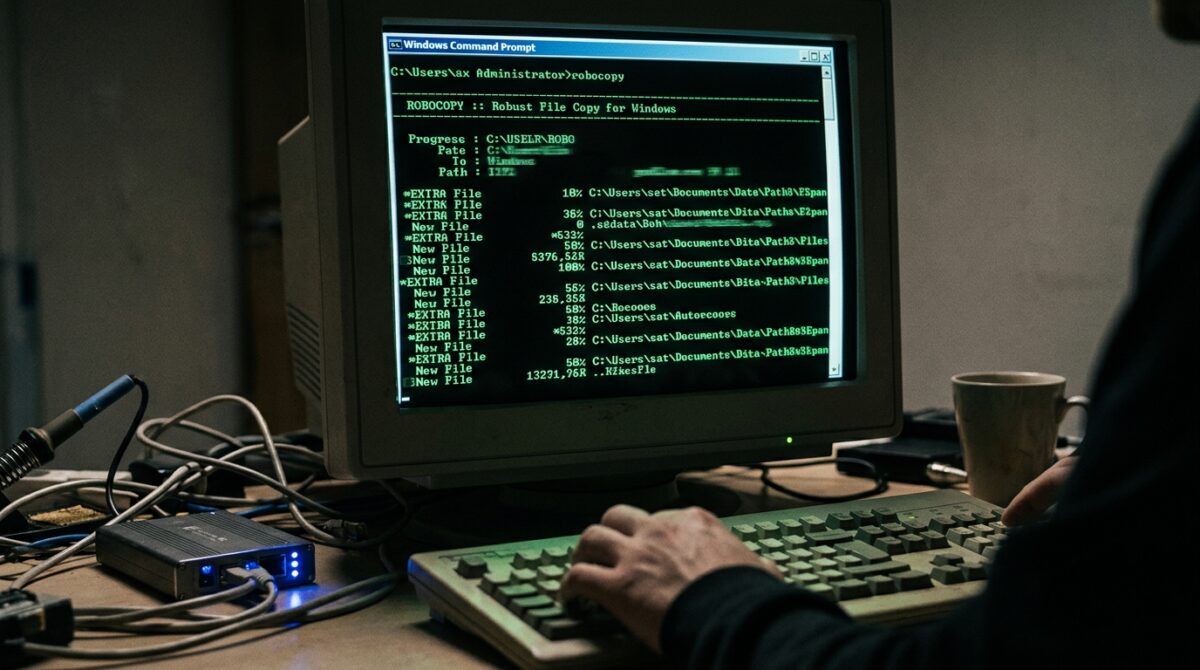
Mirroring Folders for Automated Backups Using Robocopy Command-Line Scripts Instead of Copy-Paste
For big datasets or datasets that are often changed, managing backups manually using copy-and-paste techniques is not only inefficient but also prone to errors and difficult to scale. Without using automation, the process of keeping regular backups gets more difficult as the amount of files increases. A dependable method for mirroring folders with accuracy and control is provided by Robocopy, which is a strong command-line application that is incorporated into Windows. Robocopy is able to synchronize directories, maintain file properties, and gracefully manage pauses, in contrast to simple file copying. Because of this, it is an excellent choice for automated backup operations in which accuracy and consistency are of the utmost importance. Assuring that backup locations always reflect the most recent state of source folders is something that designers and experts may do via the use of scheduled procedures. This method minimises the danger of losing crucial files and decreases the amount of human labour required. By gaining an understanding of how to setup Robocopy for mirroring, one may be able to create backup procedures that are quick, repeatable, and safe.
Uncovering the Workings of the Robocopy System
It is intended to perform large-scale file operations with more reliability than normal copy commands. Robocopy is an abbreviation for “Robust File Copy,” which is the full name of the program. As a result of comparing the directories of the source and the destination, it transmits only the differences, which results in increased efficiency. Advanced features such as retry logic, multithreading, and thorough logging are one of the capabilities that the program provides. Robocopy, in contrast to more straightforward copying techniques, is able to continue halted transfers without having to restart the whole operation. As a result, it is suited for use with network drives and collections of huge files. Its command-line nature makes it possible to include it into scripts for the purpose of automating processes. In order to construct efficient backup processes, it is vital to have a solid understanding of its key functioning. There is no other solution that can compare to the amount of control that it offers.
When it comes to precise synchronization, the Mirror Option is the way to go.
The mirror function is one of the most powerful aspects of Robocopy, since it allows for the precise duplicate of a source directory. The /MIR option, which assures that the destination folder becomes an identical replica of the source folder, plays a role in accomplishing this goal. Additionally, it deletes files that are no longer present in the source while simultaneously copying new and updated data. This maintains a precise synchronization between the two directories. Although this tool is quite useful, it must be used with caution in order to prevent the loss of data that was not intended. Having a solid understanding of how mirroring works is essential before putting it into practice in a real-world setting. When properly set, it offers a backup solution that is really one-to-one matching. This removes any discrepancies that may have existed between the source and the destination.
The Fundamental Command Structure of Robocopy
The source path, the destination path, and a set of parameters that determine behavior are all components that are associated with a standard Robocopy command. However, depending on the needs, the structure may be significantly customized despite its simplicity. It is possible to alter the properties of files, the logging, and the performance settings using additional switches. As an example, it is possible to provide parameters that copy subdirectories, maintain timestamps, or restrict the number of retries. Because of this versatility, users are able to adapt the command to meet their own backup requirements. Writing instructions that are transparent and well-structured guarantees predictable outcomes. Before deploying the whole system, it is helpful to validate functionality by testing commands on smaller datasets. It is very necessary to have a thorough grasp of command structure in order to utilize effectively.
Batch scripts for the purpose of automating backups
By incorporating Robocopy instructions into batch scripts, it is possible to remove the requirement for manual execution. It is possible to store these scripts and run them whenever it is necessary, which provides a backup procedure that can be repeated. It is possible to conduct backups automatically at certain intervals by scheduling these scripts with the help of the Windows Task Scheduler. This guarantees that the data is updated on a constant basis without the need for user participation. Automation helps save time and minimizes the likelihood of errors caused by humans. Additionally, scripts may have logging tools in order to monitor backup activities. This allows for insight into the process and assists in the identification of problems. An essential step in developing a trustworthy data management plan is the automation of backups.
Performance Enhancement Through the Use of Multithreading
It is possible to copy numerous files at the same time with Robocopy since it supports multithreading using the /MT option. In particular, when working with a large number of files, this results in a substantial improvement in performance. It is possible to modify the number of threads in accordance with the capabilities of the system and the circumstances of the network. A higher number of threads results in increased performance, but it may also use more resources from the system. Discovering the optimal equilibrium allows for effective functioning without causing the system to become overloaded. When it comes to doing massive backup procedures, multithreading is quite helpful. It decreases the total amount of time required for execution and increases productivity. It is possible to improve the efficiency of automatic backups by configuring them correctly.
Managing Errors and Keeping Track of Activity Logs
In order to ensure reliability, backup procedures must include error management and reporting. In addition to the ability to repeat unsuccessful transfers, Robocopy also provides the capability to record specific information on each operation. The number of retries and the amount of time that must pass between each attempt are both controlled by the /R and /W switches. Users have the ability to record their activities in a file for later examination thanks to the logging options. This might be helpful for troubleshooting and ensuring that backups were successfully conducted. Monitoring logs is an effective method for identifying recurrent problems and enhancing dependability. In order to prevent momentary issues from disrupting the overall operation, error management is necessary. Because of these characteristics, Robocopy is an effective tool for doing important backup jobs.
Recognizing and Avoiding Common Errors Through Mirroring
An inappropriate usage of Robocopy might result in unforeseen effects, despite the fact that it is a strong tool. By using the /MIR option without having a thorough grasp of its function, it is possible to delete significant files that are located in the destination folder. Putting scripts through their paces without first testing them might result in unexpected effects. It is possible for data to be transferred to the incorrect place if the path definitions involved are incorrect. Putting an excessive amount of threads on the system might have a negative influence on its performance. In order to prevent these problems, users should exercise caution while testing commands and check routes before carrying them out. Maintaining backups of essential data prior to adopting mirroring is another recommendation that should be considered. By being aware of these concerns, one may guarantee that the usage of Robocopy is both safe and effective.
Workflows in Professional Settings That Have Practical Applications
The management of backups, the synchronization of project files, and the preservation of data integrity are all common uses of Robocopy in professional settings. In order to back up project files on a regular basis without requiring any user interaction, designers might utilize it. It is essential for IT professionals to use it for operations involving server synchronization and data transfer. It is appropriate for usage in both personal and business settings due to its dependability and versatility. Using automated mirroring helps to guarantee that vital data is constantly up to date. This makes downtime more manageable and safeguards against the loss of data. The use of Robocopy into processes results in increased productivity and more consistency. When it comes to handling large-scale file activities, having a complete understanding of this technology offers a huge edge.