The Hidden “Generate Image Assets” Feature in Photoshop: A Complete Guide
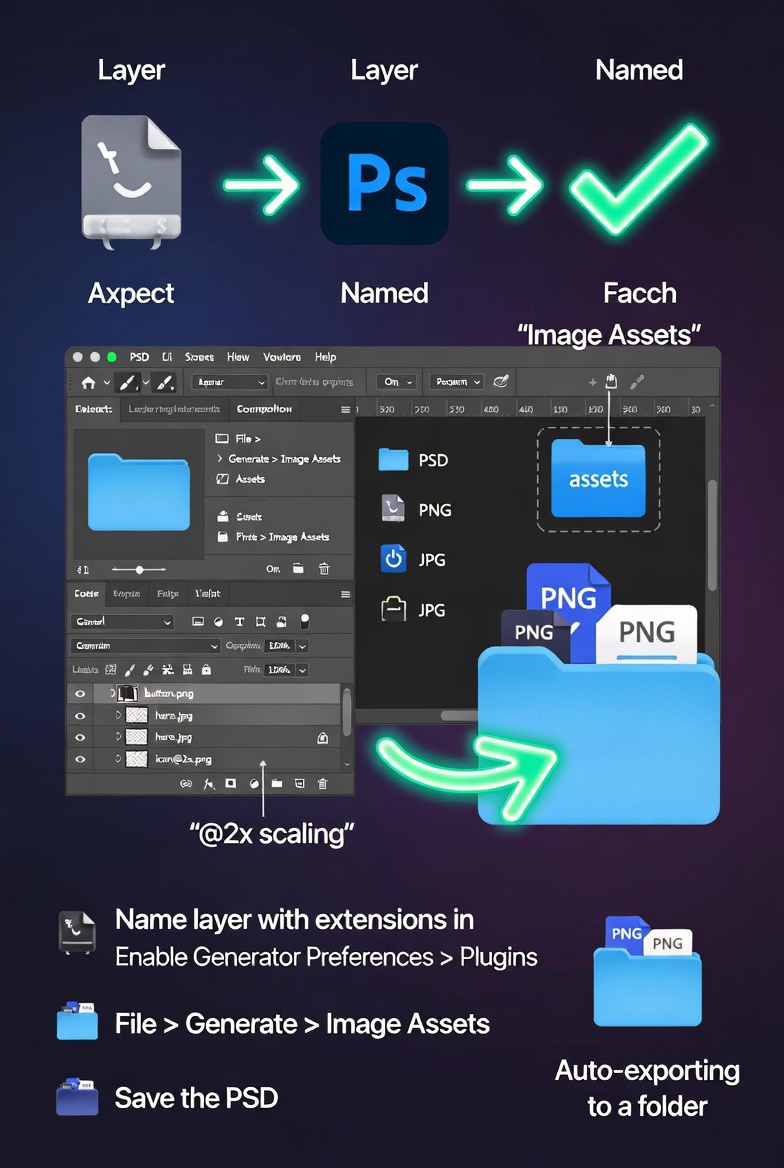
There is a strong correlation between the ability to automate repeated export processes without losing quality or control and the efficiency of current design workflows. In Photoshop, there is a function known as “Generate Image Assets,” which is a valuable tool that is sometimes missed. This option enables designers to automatically convert layers and groups into image files by just naming them in a certain manner. This functionality removes the need for manual exporting, which makes it particularly handy for web designers, user interface developers, and content producers that work with various files on a regular basis. It is possible for users to depend on Photoshop to produce files in real time while they are working, which eliminates the need for them to continuously navigate export options. The end result is a process that is not only more scalable but also more efficient, and it integrates without any problems into design systems and production pipelines. Through gaining a grasp of how to activate and make efficient use of this feature, you will be able to dramatically cut down on turnaround time and ensure consistency across all of your projects.
Explain What Generate Image Assets Is and How It Operates as a Tool
The Generate Image Assets function in Photoshop is an automated tool that, depending on the names of the layers or layer groups, turns them into image files. With this feature turned on, Photoshop will keep an eye on your work and will automatically generate assets if it finds naming conventions that are appropriate. By way of illustration, if you put a file extension like PNG or JPG straight into the name of a layer, Photoshop will begin the process of exporting that layer as an image. This functionality runs in real time, which means that any changes that are made to the layer are immediately reflected in the asset that is exported. The elimination of recurring export processes and the guarantee that assets are always up to date are both achieved via this. As a result, designers no longer have to manually re-export files after each update, which is a particularly valuable feature for processes that demand frequent revisions.
Adjusting the settings for the Generate feature in Photoshop
In order to make use of this capability, it is necessary to enable it inside the settings of Photoshop. Users are able to activate asset production for the document they are currently working on by selecting the option that is normally located under the File menu. Once it is activated, Photoshop will create a folder that is specifically designated for assets inside the same directory as the project file. This folder will automatically store all of the photographs that are created, ensuring that they are well-organized and easy to retrieve. Due to the fact that the process of asset production is dependent on the location of the file, it is essential to have your document stored before you enable the function. When you activate this feature, it is a one-time action for each document; nevertheless, it unlocks a very efficient process that continues to run in the background while you are designing.
Making Use of Layer Naming Conventions in Order to Perform Automatic Exports
The naming syntax of Generate Image Assets is the most important part of the program. When you rename a layer or group in Photoshop such that it includes a file format and optional parameters, you are giving the program the instruction to export it automatically. A good example of what causes the export process to begin is the addition of a name such as “thumbnail.png” or “icon.jpg.” In addition, you have the ability to designate the dimensions, scaling factors, and quality settings right inside the name. Because of the adaptability of this method, you are able to produce various versions of the same object without having to duplicate layers. Due to the fact that it provides you with exact control over the manner in which assets are produced and handled, it is crucial that you comprehend and understand these naming standards in order to make the most of the functionality.It is possible to export several file formats simultaneously.
This function allows you to export several formats from a single layer, which is one of the most powerful parts of this tool. Using Photoshop, it is possible to produce PNG, JPG, and other formats concurrently by specifying several file definitions in the layer name. This is especially helpful for projects that need distinct file formats for different platforms or use cases as it allows for more flexibility. Through the use of the layer naming system, designers have the ability to automate the whole process, eliminating the need to export each format individually. Having this functionality not only helps save time but also guarantees that all exported assets are consistent with one another. Those professionals who need to offer files in numerous formats without increasing their effort will find this approach to be excellent.
Administration of Asset Quality and Resolution Settings Manager
Through its naming syntax, Generate Image Assets gives users granular control over the output quality and resolution of their images. Additionally, users have the ability to set compression levels, scaling percentages, and precise dimensions right inside the layer name. This makes it possible to precisely optimize assets for various platforms, such as the web, mobile devices, or screens with a high resolution. Adjusting these settings allows designers to strike a balance between the size of the file and the visual quality in accordance with the needs of the project. In performance-sensitive contexts, where optimized assets contribute to quicker load times, this level of control is especially vital because of its importance. When you have mastered these settings, you may be certain that the photographs you export will fulfill both the technical and aesthetic requirements needed.
The Organization of Layers for the Generation of Scalable Assets
In order to achieve the highest possible level of productivity, it is essential to organize your Photoshop document in a manner that allows for the development of scalable assets. Keeping your workflow structured and simple to manage may be accomplished by grouping parts that are connected to one another and keeping clear naming standards. It is possible for each group to stand for a distinct asset type, such as icons, thumbnails, or user interface components. In addition to lowering the likelihood of making mistakes, this organizational strategy makes the process of producing various assets more straightforward. The ability to apply changes in a methodical manner without causing disruptions to the whole process is another advantage of having a document that is well-structured. This makes it simpler to update and manage assets over time.The Most Frequent Errors and How to Avoid Making Them
There are several errors that might reduce the efficacy of Generate Image Assets, despite the fact that it is quite efficient. An problem that often arises is improper name syntax, which stops Photoshop from recognizing the export command. The presence of crowded layer hierarchies, which make it difficult to handle various assets, is another point of contention. Another possibility is that users will fail to optimize the file size, which would result in outputs that are too huge. In order to prevent these problems, it is helpful to test your naming conventions and to keep your layer structure clear. In addition, conducting frequent reviews of the assets that have been developed guarantees that they correspond to the needs of the project and perform as planned. Taking action to address these difficulties at an early stage helps to maintain a straightforward and dependable workflow.
More Advanced Use Cases for Workflows in Professional Settings
Those with more advanced knowledge may incorporate Generate Image Assets into bigger production pipelines in order to automate the supply of assets and the updating of those assets. Because of this functionality, designers who are working on interfaces for websites or mobile applications may utilize it to continually produce new assets as they polish their designs. It is also possible to combine it with other Photoshop automation tools in order to build a process that is extremely effective and uniquely designed to meet certain requirements. Using this function in complicated projects allows experts to decrease the amount of physical labor they have to do, allowing them to concentrate more on the creative and strategic parts of their job. Because of this, Generate Image Assets is an indispensable tool for anybody who wants to improve the efficiency of their Photoshop process on a professional level.