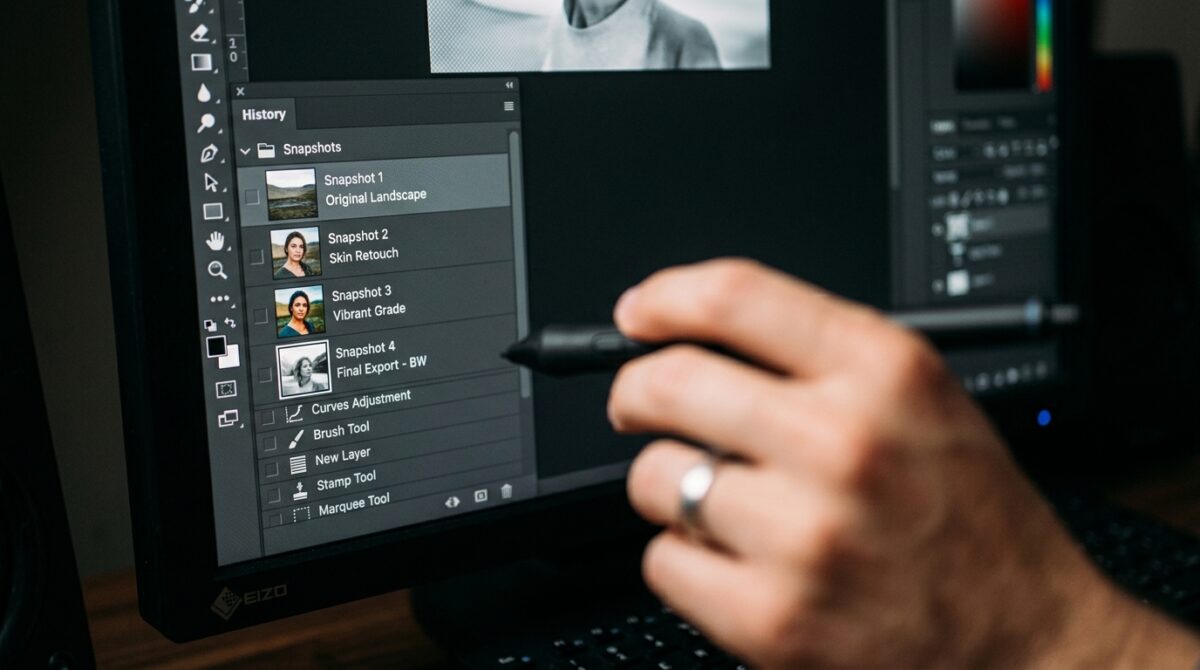
Using the History Brush and Snapshots to Branch Non-Destructive Edits Without Duplicating Files
When it comes to Photoshop, one of the most important challenges in terms of productivity is managing various edit versions without clogging up your workspace with duplicate files. It is common for designers to be required to experiment with various appearances, as well as fixes and new directions, while also maintaining older versions. In order to branch adjustments inside a single document, the History Brush and Snapshots features provide a simplified and non-destructive method of doing so. This is in contrast to the traditional method of saving numerous copies of the same file. By using these capabilities, you will be able to backtrack to prior states, selectively repair sections, and investigate alternative alterations without losing any work. This method not only reduces the amount of storage space required, but it also maintains processes that are both flexible and orderly. Designers are able to exercise complete control over iterative modifications if they have a thorough grasp of how Photoshop monitors altering history. The combination of Snapshots with the History Brush results in the creation of a strong system for version control inside a single file. Mastering this method allows for more creative flexibility as well as increased efficiency while working on difficult editing jobs.
Acquiring Knowledge about the Operation of the History Panel
Through the use of the History panel, each action that is carried out during an editing session is recorded, so producing a history of changes that can be accessed at any point in time. A state is saved in this panel for each operation that is performed, such as applying a filter or altering the levels. When designers click on a prior state, they have the ability to temporarily return the document to that particular point in time. It is important to note that the History panel does have certain limits, such as a limited amount of recorded states that are susceptible to being overwritten if new updates are performed. Due to this, it is not suited for use as a standalone solution for long-term version tracking. For efficient use of history states, it is vital to have a solid understanding of how they operate. The fact that these states are session-based and not permanent is something that designers need to consider. It is at this point when snapshots become necessary for the purpose of maintaining significant phases of the operation.
Taking Screenshots Regarding Important Editing Stages
Snapshots provide designers the ability to record and save certain states of a picture for reference at a later time. Snapshots, in contrast to conventional history states, are available for the whole of the session and are not overwritten by any new activities that are performed. The process of creating a Snapshot at significant milestones, such as after color correction or retouching, guarantees that these versions may be revisited. Snapshots function as checkpoints that preserve the document’s status at a particular instant in time. It is possible to give them names in order to facilitate simple identification and to assist in the organization of various editing branches. This capability is very helpful when doing experiments that include a number of different creative directions. Keeping a clear structure inside a single file is something that designers may do by preserving Snapshots in a planned manner. This streamlines version control and lowers the requirement for external file duplication, which is a benefit.
Application of the History Brush for the Purpose of Selective Restoration
To selectively paint from a prior state or Snapshot onto the present picture, the History Brush is a powerful tool that enables for selective painting. It is possible for designers to restore only sections of the document to a previous version, rather than restoring the whole text. Not only does this allow for exact control over alterations, but it also facilitates the creative mixing of multiple phases. For instance, a designer may apply a high color grade and then use the History Brush to restore the original tones in some sections of the image. It is possible to use the tool by taking a sample from a certain historical condition and then applying it with a brush. You may have even more control by modifying the brush’s size, opacity, and hardness. The use of this chosen technique provides for more refined findings and increases the flexibility of the process. Within the confines of a single document, it is an essential method for doing non-destructive editing.
Avoiding Duplication of Files Through Branching Edits
utilizing Snapshots and the History Brush allows you to branch modifications without having to create numerous files, which is one of the most significant benefits of utilizing these editors. By moving between Snapshots and making selected adjustments, designers are able to experiment with a variety of styles or fixes. The Snapshots each illustrate a prospective path that has the potential to be explored further. This approach maintains all variants contained inside a single page, which reduces the complexity of managing files. It also makes it possible to compare various versions in a short amount of time. It is possible for designers to conserve storage space and keep their workflow cleaner if they avoid creating duplicate files. This strategy is especially useful for huge projects that need several iterations throughout the development process. All of the creative alternatives will continue to be easily available and well-organized thanks to this.
Snapshots and Adjustment Layers Working Together together
You should utilize Snapshots in conjunction with non-destructive tools like adjustment layers in order to get the most amount of flexibility possible. Through the use of adjustment layers, it is possible to modify or delete modifications without having an impact on the data of the original picture. When used in conjunction with Snapshots, they provide a powerful editing system that is capable of bringing about alterations that are both global and localized. During the various phases of adjustment layer use, designers have the ability to collect snapshots, which allows them to save several variants. The combination of these two factors improves the control over the editing process. An additional benefit is that it makes it simple to experiment with various settings. Both of these capabilities, when used together, guarantee that alterations will continue to be reversible and flexible. With regard to professional processes, this integrated approach is very necessary.
Improving Performance Through the Management of Historical States
Even if the History panel is helpful, it is essential to manage its settings in order to keep the performance at a satisfactory level. Increasing the number of history states makes it possible to record a greater number of steps; nevertheless, this has the effect of using more memory from the system. When designing, designers are required to strike a balance between the capabilities of their system and the intricacy of the project. It is possible to increase responsiveness and free up resources by removing states that are not essential. Snapshots are a useful tool for reducing dependency on lengthy history states since they save critical versions for various purposes. When working on hard editing activities, having a better understanding of how to adjust these settings can guarantee a smoother environment. The handling of historical data in an effective manner adds to the maintenance of a better workflow. Not only does it reduce slowdowns, but it also increases overall productivity.
What to Do to Avoid Making Common Errors When Editing Based on History
It is possible for Snapshots and the History Brush to lessen their usefulness due to a number of typical blunders. If you rely entirely on historical states without producing snapshots, you run the risk of losing crucial versions of the data. If you forget to establish the right source state for the History Brush, it is possible that you may make adjustments that you wanted to avoid. Using the instrument excessively without exercising enough control might lead to outcomes that are inconsistent. Ignoring the settings for system performance might also have an effect on the efficiency of workflow. For the purpose of avoiding these problems, designers have to take a methodical approach to the use of these capabilities. It is possible to increase usability by storing Snapshots on a regular basis and arranging them in a straightforward manner. Using the tools in an efficient manner requires careful attention to detail. It is possible to get outcomes that are more dependable and professional by avoiding these errors.
Workflows in Professional Settings That Have Practical Applications
When it comes to professional editing processes, the use of Snapshots and the History Brush is very significant components. Within the confines of a single file, photographers are able to generate several color grading variants. It is possible for retouchers to experiment with various levels of detail without having to commit to making alterations that are permanent. In a rapid and effective manner, designers are able to compare several creative paths. This strategy is very helpful when working with clients, when it may be necessary to consider a number of different possibilities. It enables quick iteration and makes modifications simple to do. With all variants included inside a single document, the procedures of communication and feedback are simplified to a greater extent. This strategy improves both the freedom of artistic expression and operational efficiency. When it comes to contemporary digital editing settings, having a command of these tools gives a substantial edge.