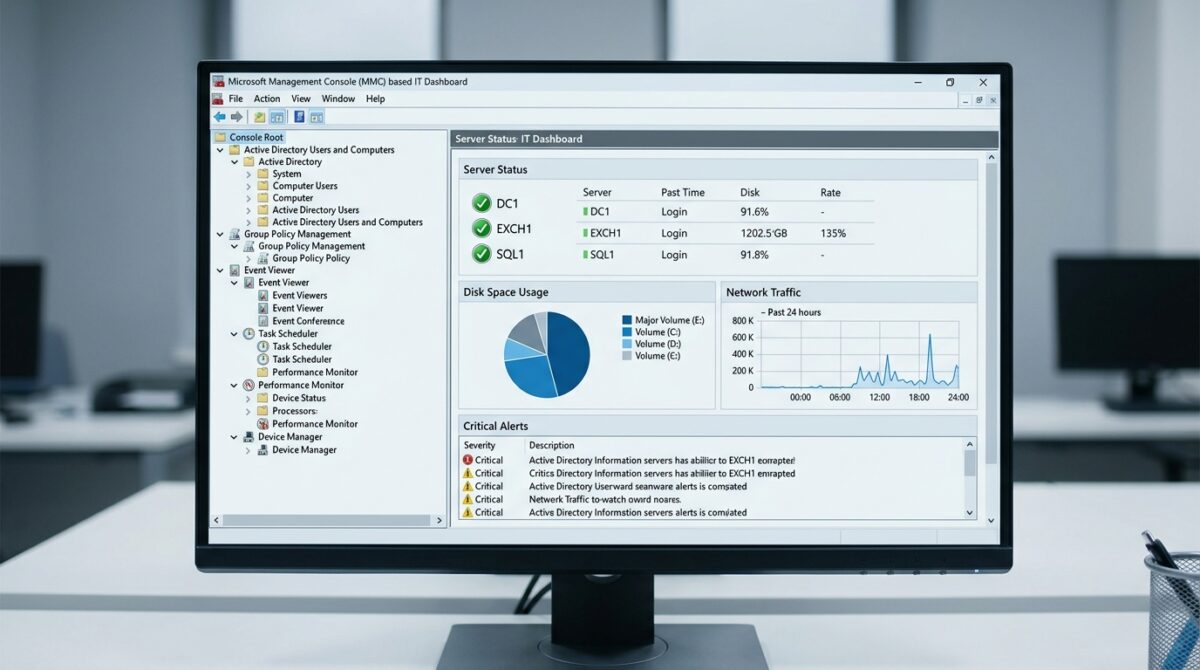
Consolidating Administrative Tools by Creating a Custom Microsoft Management Console (MMC) Snap-in
When it comes to Windows, managing multiple administrative tools separately can quickly become inefficient. This is especially true for system administrators who are responsible for performing frequent configuration and monitoring tasks. Switching between various utilities, such as services, event logs, and device management, is a time-consuming process that also raises the possibility of missing something important. Users are able to combine these tools into a single, unified interface thanks to the Microsoft Management Console, which offers a centralized framework that allows for this possible. Through the creation of a bespoke console that incorporates specific snap-ins, administrators are able to streamline their workflow and gain access to essential tools in a single location. Utilizing this approach results in a reduction in complexity and an increase in operational efficiency. In addition to this, it enables the creation of settings that are particular to certain jobs or duties. A important skill for more efficiently managing systems is the ability to construct and customize a console that is unique to the user. With the right configuration, administrative duties become more efficient, more well-organized, and simpler to manage.
Having an understanding of the framework of the Microsoft Management Console
Microsoft Management Console is a framework that is based on Windows and the purpose of which is to host administrative tools that are known as snap-ins. These snap-ins are applications that provide individual management utilities, such as disk management, event viewing, or editing of group policies. It is the console itself that serves as a container, bringing all of these tools together under a single interface. Despite the fact that each snap-in functions independently, it is possible to organize them within the same console for your convenience. Using this modular design, administrators are able to create environments that are customizable and tailored to their specific requirements. To construct consoles that are effective, it is essential to have a solid understanding of how the framework operates. It offers a degree of versatility in terms of the access and utilization of tools. In order to consolidate administrative tasks, this structure serves as the foundation.
The Introduction of a New Console and Its Creation
In order to begin the process of creating a custom console, you must first launch the MMC application by using either the Windows Run dialog or the system search. Upon opening, the console is initially a blank workspace that allows for the addition of snap-ins. This empty state gives you full control over the tools that are included in the package itself. Accessing the add or remove snap-in option affords users the opportunity to initiate the construction of their console. Through the use of this procedure, one can choose from a wide variety of administrative tools that are available. Beginning with a clean console guarantees that only the utilities that are pertinent to the situation are included. Taking this approach helps to keep one’s focus and prevents unnecessary clutter from occurring. One of the first steps toward achieving a management environment that is more organized is the creation of a new console.
Implementing Snap-ins and Configuring Them
It is essential to choose the appropriate snap-ins for your MMC console because they are the fundamental components of any console. A few examples of common snap-ins include the event viewer, disk management, device manager, and support for services. It is possible to set each snap-in to target a particular machine, regardless of whether it is local or remote. This versatility enables administrators to handle many systems from a single interface, which is a significant benefit. Increasing the usefulness and efficiency of snap-ins by organizing them in a reasonable manner. An example of this would be the grouping of relevant tools together, which makes navigating simpler. In order to guarantee that each snap-in performs as intended, proper setup is required. This action will turn the console into a very effective administrative center.
Putting the Console in Order to Maximize Efficiency
When snap-ins have been included, it is critical to efficiently organize them in order to ensure that they are usable. It is possible to organize snap-ins in a tree structure using the MMC interface, which makes navigating more straightforward. The creation of folders inside the console allows for the organization of tools that are connected to one another and helps to keep the layout tidy. Changing the names of things so that they better represent their function promotes clarity. A console that is well-organized lessens the amount of time that is required to find certain instruments. Moreover, it reduces the number of mistakes that occur by providing an organized environment. Productivity and the overall user experience are both improved by thoughtful organizing. Taking this step guarantees that the console will continue to be functional and simple to use.
Keeping and Reusing Individually Tailored Devices
When you save the console once you have configured it, you may reuse it without having to go through the process of setting it up again. It is possible to save the console as a file and then access it whenever it is required. This is especially helpful for administrators who are responsible for doing activities that are repetitive. It is also possible to share saved consoles with other members of the team in order to standardize procedures. As a result, this guarantees uniformity across a variety of users and systems. By keeping the console up to date as the requirements change, it remains effective and relevant. One of the most important aspects of sustaining efficiency is saving settings. Additionally, it enables a speedy access to a specialized administrative environment.
Making Adjustments to User Modes and Permissions
MMC gives users the ability to customize how they interact with the console via a variety of settings. With the help of several user modes, it is possible to limit access to certain functions, therefore avoiding unintentional modifications. It is possible, for instance, to put a console into read-only mode for the purpose of monitoring. Having this capability is helpful in settings where numerous individuals have access to the same tools. Through the configuration of permissions, the console may be used in a manner that is both secure and suitable. Further, it assists in the enforcement of organizational policies. Maintaining the integrity of the system requires that you have a solid understanding of these parameters. In addition to improving accessibility, proper access management also improves security.
Snap-ins make it possible to manage remote systems.
One of the most impressive capabilities of MMC is its capacity to handle systems that are located in faraway locations. Configuring a large number of snap-ins to connect to other machines on the network is possible. This makes it possible for administrators to carry out duties without having to physically access each system each time. The use of remote management results in increased productivity and less downtime. Particularly useful in settings that are huge or scattered are situations like these. For this capability to be available, the appropriate setup and network permissions are necessary. It is possible to enhance the capabilities of the console by gaining an understanding of how to connect and handle external systems. As a result of this characteristic, MMC is a flexible instrument for the management of contemporary systems.
Keeping away from the Most Frequent Errors in Console Design
It is possible for a bespoke MMC console to be less effective due to a number of frequent faults. Incorporating an excessive number of snap-ins might result in clutter and make navigating more challenging. It is possible for confusion and inefficiency to result from poor organization. If you fail to save the console, you will have to do the setup process many times. Refusing to pay attention to the settings of the user mode might leave essential tools vulnerable to unwanted modifications. By failing to test the console before deployment, you run the risk of encountering unforeseen problems. It is important for administrators to properly prepare the layout of their consoles in order to prevent these complications. Updating and reviewing it on a regular basis helps to keep its usefulness intact. Maintaining the console’s status as a dependable instrument requires careful attention to detail.
Improved Workflow Through the Implementation of Centralized Administration
Through the consolidation of necessary tools, a well-designed MMC console may greatly enhance administrative procedures. It eliminates the need to move between a number of different apps and offers a management interface that is uniform across all of the managed systems. The everyday activities are much more accurate and efficient as a result of this consolidation. Additionally, it facilitates improved organization and more transparent task management. Through the customization of the console to various roles, administrators are able to concentrate on the tools and tasks that are pertinent to their positions. Taking this focused strategy minimizes complexity while also increasing productivity. Over the course of time, a specialized console will become an essential component of effective system administration. Acquiring a command of this method confers a significant advantage in professional information technology settings.