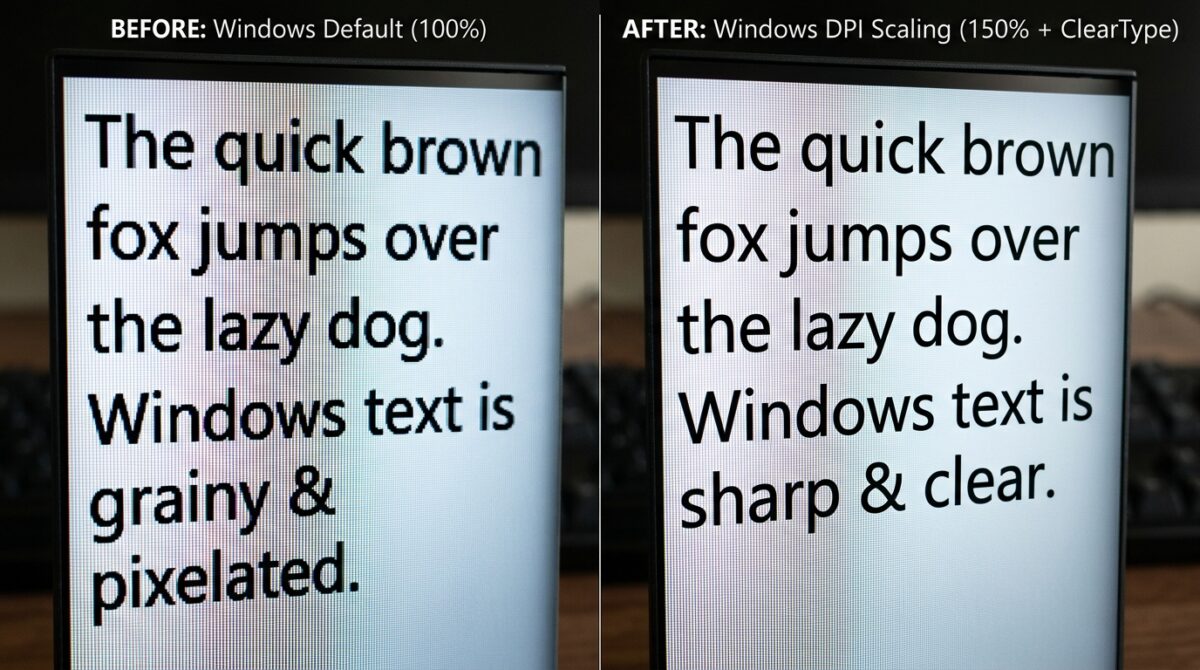
Resolving Blurry Text on High-DPI External Monitors Using Custom Per-App Scaling Overrides
In current Windows setups, a typical problem is the appearance of blurry text on high-DPI external monitors. This problem is particularly prevalent when combining displays that have varied resolutions and scaling settings of their own. Software programs that are not completely optimized for high-DPI rendering sometimes give the impression of being stretched, stretched out, or scaled incorrectly. In professional processes that are dependent on visual clarity, this may have a major impact on the reading of the content as well as the overall user experience. There are times when Windows does not handle outdated or poorly optimized apps appropriately, despite the fact that it offers automatic scaling. Users have the ability to adjust how particular programs render on high-resolution monitors via the use of custom per-app scaling overrides, which provide a precise solution. By using this strategy, it is possible to get crisper text and improved interface scaling without harming the system as a whole. To ensure that the visual presentation remains consistent, it is vital to have a solid understanding of how the DPI scaling works and how to selectively override it. Users have the ability to achieve text that is crisp and clear across all displays by making the appropriate modifications.
Acquiring Knowledge about Windows’ High-DPI Scaling feature
The purpose of high-DPI scaling is to make user interfaces legible on screens that have a high pixel density. To ensure that items continue to be usable inside the system, the system scales them up rather than displaying them at their original size. When it comes to newer programs that enable DPI awareness, this works quite well; however, older applications could not support scaling appropriately. This kind of software often makes use of bitmap scaling, which causes the user interface to become stretched out and blurry. Windows makes an effort to automatically correct for this, but the results are not always going to be completely satisfactory. By gaining an understanding of the scaling process, one may better answer the question of why some apps look hazy. DPI awareness levels are what dictate how an application interacts with the scaling settings of the system. Resolving display difficulties begins with recognizing these discrepancies, which is the first step in the process.
For what reason does text seem blurry on external monitors?
When you move programs between displays that have different DPI settings, you may notice that the text is blurry quite often. It is possible, for instance, that the scaling factor of a laptop display is larger than that of an external monitor. There is a possibility that an application will not adapt appropriately when it is relocated if it was not intended to support dynamic scaling. As a consequence, the text will become stretched or softened. A further issue is that some apps only have a partial awareness of the DPI, which results in rendering that is inconsistent. There is a possibility that Windows may apply compatibility scaling, which could further reduce clarity. Due to the fact that sharpness is demanded on high-resolution screens, these flaws are more visible on such panels. In order to choose the most suitable remedy, it is helpful to identify the underlying reason of blurriness. It is crucial for efficient troubleshooting that you have a solid understanding of this behavior.
Gaining Access to Compatibility Settings in Order to Perform Scaling Overrides
Users of Windows have the ability to modify the scaling behavior of specific apps by using compatibility settings. Open the properties of the program executable or shortcut by right-clicking on it. This will allow you to access this functionality. You may alter the high-DPI settings by using the option that is included inside the compatibility tab. This area gives you control over how the application interacts with the scalability of the system. The ability to enable overrides gives users the ability to circumvent the default behavior and apply their own scaling rules. Through the use of this focused strategy, only applications that are troublesome are targeted for modification. The process of accessing these options is simple and does not involve any sophisticated setup. Additionally, it offers a workable approach for fixing display difficulties on an application-by-application basis.
How to Determine the Appropriate DPI Scaling Mode
Windows gives users the option to choose from a number of different modes that impact how the program is presented when a scaling override is applied. The application mode gives the program the ability to handle its own scaling, which is most effective for computer programs that are currently in use. Because the system mode applies scaling at the system level, it is possible that some apps may provide a blurry appearance. The enhanced mode of the system makes an effort to increase clarity by using more sophisticated scaling mechanisms. How the program operates is a factor that should be considered while selecting the suitable mode. Testing a variety of possibilities helps determine which one produces the greatest results. Every single mode comes with its own set of benefits and drawbacks. The selection of the appropriate one is essential in order to get crisp text and appropriate scale.
The process of evaluating and modifying for maximum clarity
Immediately after the implementation of scaling overrides, it is necessary to test the application on the monitor that is the target. Text clarity, interface alignment, and general usability are all important factors that users should consider. Alternating to a different scale mode might perhaps result in a better output in the event that the result is not adequate. For the purpose of avoiding the introduction of new problems, adjustments need to be undertaken in stages. Performing a restart of the program guarantees that the modifications will take effect as intended. In order to check consistency, it is helpful to compare the findings obtained from several monitors. In order to fine-tune the display settings, it is important to go through this process of trial and error. To get the highest possible level of clarity, diligent observation and correction are required. For accurate findings, consistent testing is essential.
Dealing with the Challenges of Scaling Multiple Monitors
Having many monitors in a configuration adds an extra layer of complexity because of the different resolutions and scaling variables involved. There is a possibility that applications may act differently depending on the monitor you are using to show them. It is possible to mitigate these problems by ensuring that scaling is constant across all displays. There are situations in which modifying the scale settings of specific screens could be of assistance. We must, however, strike a balance between this and the needs for use. When it comes to dealing with discrepancies, per-app overrides provide an adaptable approach. They make it possible to optimize certain apps without having an effect on the settings of the whole system. It is essential to have a solid understanding of how various monitors interact with certain scaling options. To create a more seamless experience while using several monitors, proper setting is essential.
Understanding How to Avoid Common Errors When Troubleshooting DPI
There are a number of frequent errors that might make the process of repairing fuzzy text more difficult. Rather than applying per-app overrides, applying global scaling adjustments might potentially cause disruptions to other apps. Choosing the incorrect scale option might make the problem much more severe rather than making it better. Making changes to a program and then forgetting to restart it thereafter might result in confusion. Ignoring the settings that are particular to the monitor might lead to behavior that is inconsistent. Users must to adhere to an organized strategy and carry out meticulous testing of each alteration in order to prevent these issues. It is crucial to have a solid understanding of the influence of each location. It is possible to improve the efficiency of troubleshooting by avoiding these problems. If you pay attention to the details, you will get greater results.
Consistency of Display Over the Long Term Improvement
It is not enough to just correct a particular problem in order to resolve blurry text; rather, it is necessary to develop a display environment that is consistent. It is possible to improve compliance with contemporary DPI standards by maintaining program updates. The use of monitors that have resolutions and scaling factors that are comparable helps to decrease complexity. In order to maintain optimum performance, it is helpful to evaluate display settings on a regular basis. In the future, it may be possible to save time by documenting successful configurations. It is possible to increase both user comfort and productivity by adopting a consistent strategy to scaling. These behaviors, when carried out over time, result in a system that is more dependable and stable. Maintaining clarity across all programs contributes to an overall improvement in the computing experience.